Track the weather during your visitors' sessions and see how temperature, rain or wind influence traffic, behaviour and conversions.
Features
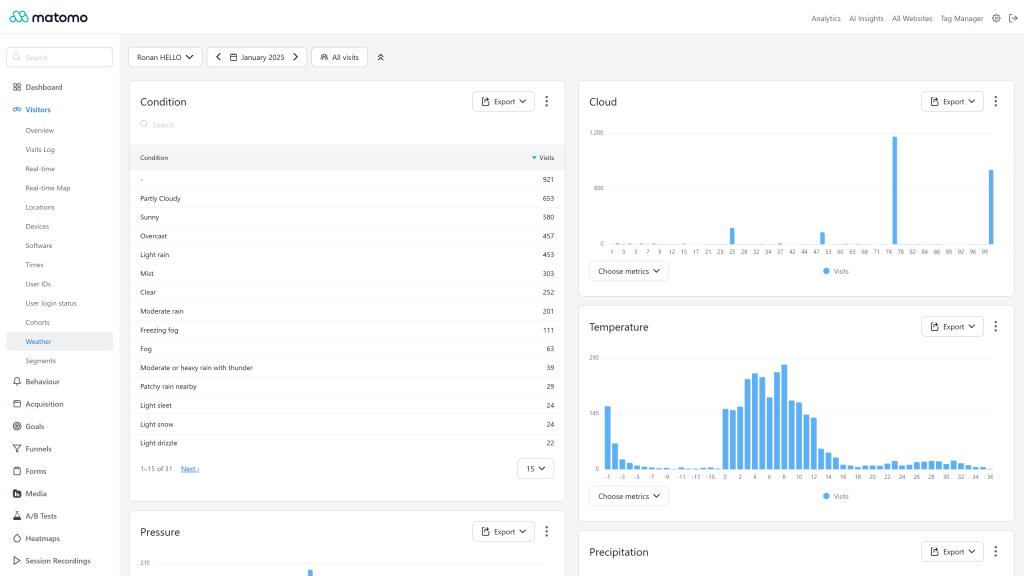
- 11 weather dimensions: Condition, Cloud, Temperature, Felt temperature, Humidity, Pressure, Precipitation, UV, Visibility, Wind direction and Wind speed, each with its own report, segment and API method, in the Visitors > Weather section.
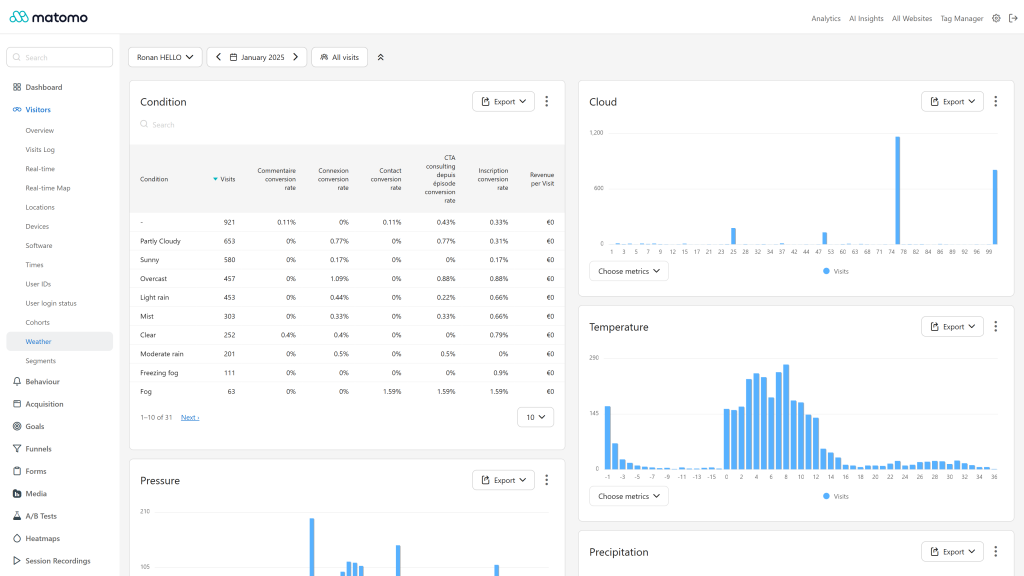
- Goals and ecommerce on every dimension: conversion rate, conversions and revenue broken down by weather. Weather is also stored with each conversion.
- Readable reports: bar charts with numeric ordering for scale reports, unit shown in the column title (for example
Temperature (°C)), top 15 rows plus "Others" for Condition and Wind direction. - Conditions in the language of each user: condition texts are matched against the official WeatherAPI list and displayed in the Matomo user's language. The same condition tracked in several languages is merged in one row, and conditions that WeatherAPI names with the same word in some languages (such as Mist and Fog) keep separate rows.
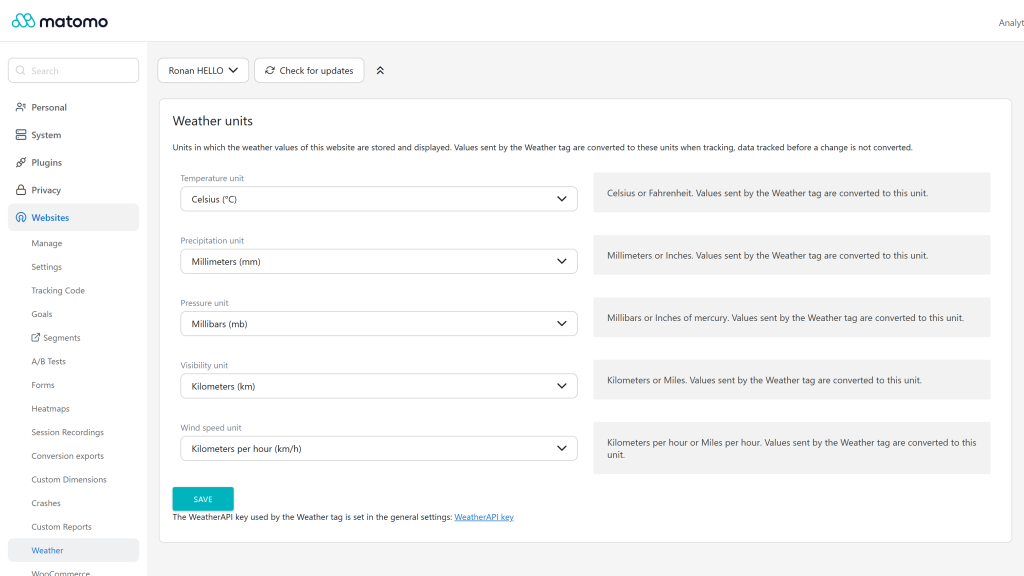
- Units per website: choose °C/°F, mm/in, mb/inHg, km/mi and km/h/mph on the Administration > Websites > Weather page. The Weather tag sends metric values and Matomo converts them when tracking.
- WeatherAPI key kept on the server: save the key in the plugin settings, the Weather tag gets the weather through a Matomo endpoint and the key never appears in your website code. Responses are cached 30 minutes per location.
- Matomo Tag Manager template: a ready-to-use Weather tag (Openmost category). The weather is cached one hour in the browser session and added to the tracking requests of every page, with no extra request in most cases.
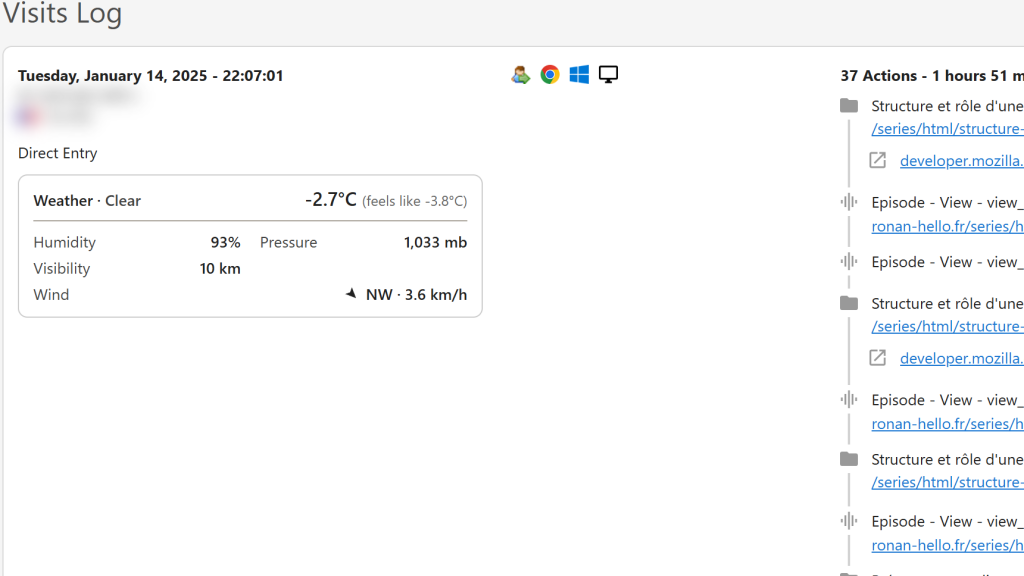
- Visitor log card: condition, temperatures, measures and a wind direction arrow, following Matomo's light and dark themes.
- Validated tracking: out-of-range or malformed values are dropped when tracking.
- Classic tracking code supported: push the values yourself with
_paq.push(['WeatherReports.setWeather', ...])if you do not use Tag Manager. - Available in 13 languages.
Requirements
- Matomo 6.0.0 or later, below 7.0.0
- PHP 8.1 or later
- A WeatherAPI API key (the free plan includes 1 million calls per month)
- Matomo Tag Manager (optional, recommended)
Installation / Configuration
- Install the plugin from the Matomo Marketplace, or upload it to
plugins/WeatherReports, then activate it. Matomo adds theweather_*columns to the visit and conversion tables. - Save your WeatherAPI key in Administration > System > General settings > WeatherReports (super user).
- Set the units of each website in Administration > Websites > Weather (website admin access).
- In Matomo Tag Manager, add the Weather tag, leave its API key empty to use the key saved in Matomo, and publish the container. Without Tag Manager, use the classic code snippet from the documentation.
After a plugin update, republish your Tag Manager container to serve the latest Weather tag.
Before you deactivate or uninstall the plugin, delete the Weather tags of your containers, or keep the TagManagerExtended plugin active. Matomo Tag Manager cannot display a tag whose template comes from a disabled plugin, the tags list of the container then stays on "Loading data".
Privacy and data
- The weather is looked up from the visitor's location. Through the Matomo endpoint (recommended), WeatherAPI receives the coordinates found by Matomo geolocation rounded to about 10 km, or the visitor IP without its last byte.
- When the Weather tag or your own code calls WeatherAPI directly with its own key, WeatherAPI receives the visitor IP.
- No other third-party service is contacted. Mention WeatherAPI in your privacy policy.
- The WeatherAPI key is stored in the Matomo plugin settings.
Need help with Matomo?
Openmost is an official Matomo Implementation Partner. We connect Matomo to external data sources and the rest of your stack with Matomo integrations built on official APIs, with documented and privacy-checked data flows.
-
Conversion rate by weather condition
-
Weather card in the visits log
-
Weather reports temperature cloud and condition
-
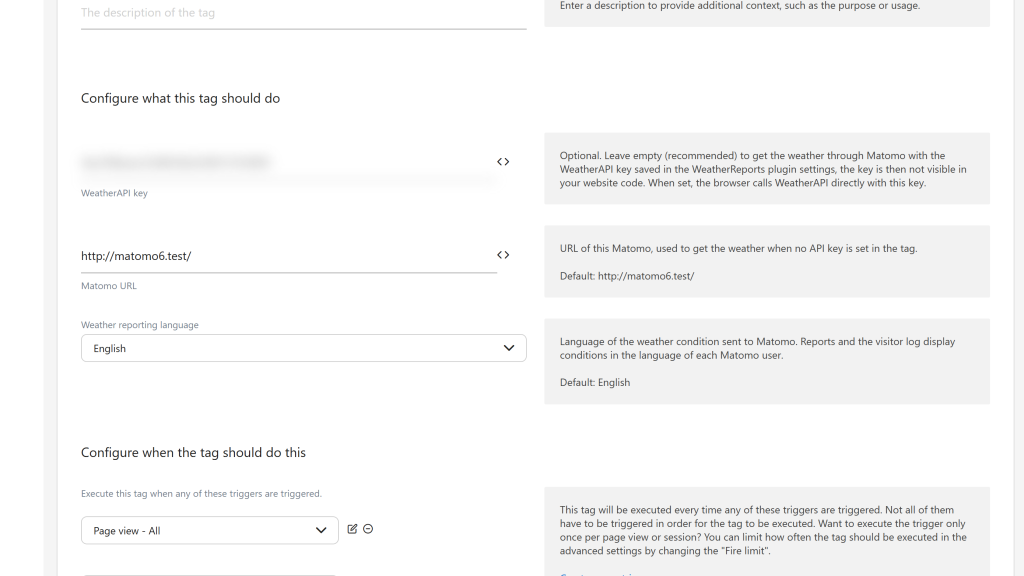
Weather tag in Tag Manager
-
Weather units per website
1- Install the plugin from the marketplace or via GitHub
Install this plugin from the Marketplace as super user or download the plugin and install it on your server from FTP in
the /plugins folder.
Upon activation, this plugin will automatically update the structure of your database's log_visit and
log_conversion tables by adding 11 new columns prefixed weather_ for the new dimensions.
2 - Save your WeatherAPI key in Matomo (recommended)
This plugin retrieves weather data from WeatherAPI. Generate your own API key (the free plan is up to 1 million calls per month), then save it as super user in Administration → System → General settings → WeatherReports.
Matomo then calls WeatherAPI itself through a small public endpoint, so the key never appears in your website code:
GET {matomoUrl}/index.php?module=WeatherReports&action=getWeather&lang=en
→ {"current": {"temp_c": 13.2, "condition": {"text": "Overcast", "code": 1009}, ...}}
Responses are cached for 30 minutes per location. WeatherAPI receives the coordinates found by Matomo geolocation (rounded to about 10 km) when a GeoIP city database is configured, otherwise the visitor IP without its last byte.
3 - Configure the units of the website
In Administration → Websites → Weather, choose the website with the site selector and set the Temperature (°C/°F), Precipitation (mm/in), Pressure (mb/inHg), Visibility (km/mi) and Wind speed (km/h/mph) units (admin access to the website needed). Values are stored and displayed in these units: the tracking code sends metric values and Matomo converts them when tracking. Reports show the unit in the column title and the visitor log next to each value.
Changing the units later does not convert the data tracked before the change.
4 - Fetch data on your website
The weather is fetched once per hour per browser session (cached in sessionStorage) and added to the tracking
requests of every page, so a new visit started in the same browser session gets it too.
4 - 1 With Matomo Tag Manager (Recommended)
Use the Weather custom Tag in Matomo Tag Manager (in the Openmost section), fire it on every page view and publish a new container version.
- WeatherAPI key: leave it empty to use the key saved in Matomo (recommended). When set, the browser calls WeatherAPI directly with this key, visible in the container.
- Matomo URL: prefilled with the URL of your Matomo, used when the tag has no API key.
- Language: language of the condition text sent to Matomo. Reports and the visitor log display conditions in the language of each Matomo user whatever the language tracked.
Upgrading from a previous version of the plugin? The published container is a static JS file built at publish time, so improvements to the bundled tag template only take effect once you republish your container. Until then the previous tag keeps working as before.
4 - 2 OR with Matomo classic code (only if you don't use Matomo Tag Manager)
Add the following snippet on every page, after the Matomo tracking code. Replace https://matomo.example.com/ with
the URL of your Matomo.
<!-- Openmost WeatherReports code for Matomo -->
<script>
    (async function () {
        const matomoUrl = "https://matomo.example.com/";
        const lang = "en"; // language of the condition text, see https://www.weatherapi.com/docs/
        const cacheKey = "matomoWeather";
        const cacheTtl = 60 * 60 * 1000; // one weather lookup per hour per browser session

        const send = (weather) => {
            window._paq = window._paq || [];
            window._paq.push(["WeatherReports.setWeather",
                weather.cloud,                               // Cloud
                weather.condition && weather.condition.text, // Condition
                weather.feelslike_c,                         // Felt temperature
                weather.humidity,                            // Humidity
                weather.precip_mm,                           // Precipitation
                weather.pressure_mb,                         // Pressure
                weather.temp_c,                              // Temperature
                weather.uv,                                  // UV
                weather.vis_km,                              // Visibility
                weather.wind_dir,                            // Wind direction (compass)
                weather.wind_kph,                            // Wind speed
                "metric"                                     // Matomo converts to the units of the website
            ]);
        };

        try {
            const cached = JSON.parse(sessionStorage.getItem(cacheKey) || "null");
            if (cached && cached.current && Date.now() - cached.time < cacheTtl) {
                send(cached.current);
                return;
            }
        } catch (_) { /* storage disabled */ }

        try {
            const response = await fetch(
                `${matomoUrl}index.php?module=WeatherReports&action=getWeather&lang=${encodeURIComponent(lang)}`,
                { credentials: "omit" }
            );
            if (!response.ok) return;
            const data = await response.json();
            const weather = data && data.current;
            if (!weather) return;

            send(weather);

            try {
                sessionStorage.setItem(cacheKey, JSON.stringify({ time: Date.now(), current: weather }));
            } catch (_) { /* storage full or disabled */ }
        } catch (_) { /* swallow network errors */ }
    })();
</script>
<!-- End Openmost WeatherReports code for Matomo -->
To call WeatherAPI directly instead (the key is then visible in your website code), replace the fetched URL with
https://api.weatherapi.com/v1/current.json?key=YOUR_KEY&q=auto:ip&aqi=no&lang=....
The last setWeather argument tells the unit system of the values: "metric" or "imperial" (feelslike_f,
precip_in, pressure_in, temp_f, vis_miles, wind_mph). Without it, values are stored as sent, as snippets of
previous plugin versions do.
Values are sent with the page view when the weather is known before it, otherwise with a ping request attached to
the current visit.
Optional: resolve the visitor IP via Matomo
The plugin also exposes a small public endpoint that returns the visitor IP as Matomo resolves it (honouring
proxy_client_headers from your config.ini.php). It can be called from any origin:
GET {matomoUrl}/index.php?module=WeatherReports&action=getUserIp
→ {"ip": "203.0.113.5"}
5 - Enjoy new reports and features
You will find the different reports in the Weather section of the Matomo Visitors menu. These reports support Matomo's automatic archiving CRON for better performance (recommended).
The visitor log and visitor profile show a weather card for each visit with weather data.
Dimensions, segments and API methods:
| Dimension name   | Type   | Segment name           | API method                        | Tracking HTTP API parameter |
|------------------|--------|------------------------|-----------------------------------|-----------------------------|
| Condition        | string | weatherCondition       | WeatherReports.getCondition       | weather_condition           |
| Cloud            | int    | weatherCloud           | WeatherReports.getCloud           | weather_cloud               |
| Temperature      | float  | weatherTemperature     | WeatherReports.getTemperature     | weather_temperature         |
| Felt temperature | float  | weatherFeltTemperature | WeatherReports.getFeltTemperature | weather_felt_temperature    |
| Pressure         | float  | weatherPressure        | WeatherReports.getPressure        | weather_pressure            |
| Precipitation    | float  | weatherPrecipitation   | WeatherReports.getPrecipitation   | weather_precipitation       |
| Humidity         | int    | weatherHumidity        | WeatherReports.getHumidity        | weather_humidity            |
| Uv               | float  | weatherUv              | WeatherReports.getUv              | weather_uv                  |
| Visibility       | float  | weatherVisibility      | WeatherReports.getVisibility      | weather_visibility          |
| Wind direction   | string | weatherWindDirection   | WeatherReports.getWindDirection   | weather_wind_direction      |
| Wind speed       | float  | weatherWindSpeed       | WeatherReports.getWindSpeed       | weather_wind_speed          |
Tracking HTTP API: add weather_units=metric or weather_units=imperial to have the values converted to the units of
the website.
The segment of a condition compares with the text as tracked (in the language of the tag). Condition report rows link to a segment matching every text merged in the row.
Privacy note
Through the Matomo endpoint, WeatherAPI receives rounded coordinates or the visitor IP without its last byte. When the tag calls WeatherAPI directly, WeatherAPI receives the visitor IP. Make sure your privacy policy mentions it. The plugin does not call any third-party IP-geolocation service.
Example WeatherAPI response
{
  "last_updated": "2026-05-06 20:00",
  "temp_c": 13.2, "temp_f": 55.8,
  "is_day": 1,
  "condition": { "text": "Overcast", "code": 1009 },
  "wind_mph": 6, "wind_kph": 9.7, "wind_degree": 346, "wind_dir": "NNW",
  "pressure_mb": 1011, "pressure_in": 29.85,
  "precip_mm": 0.08, "precip_in": 0,
  "humidity": 67, "cloud": 100,
  "feelslike_c": 12.5, "feelslike_f": 54.5,
  "vis_km": 10, "vis_miles": 6,
  "uv": 0
}
How do I install this plugin?
This plugin is available in the official Matomo Marketplace. Install it the same way as any other plugin:
- Go to the administration panel.
- Open Marketplace → Plugins.
- Search for WeatherReports, then install and activate.
- Follow the setup documentation to save your WeatherAPI key and wire up the data collection.
Which Matomo versions are supported?
Version 6.x of the plugin requires Matomo 6, PHP 8.1+ and MySQL 8.0+ or MariaDB 10.6+. Use the 5.x versions of the plugin on Matomo 5.
Do I need to do anything after updating the plugin?
No. Updates of the 6.x versions need no database migration: existing data, settings, Tag Manager tags and tracking codes keep working. Republish your Tag Manager container to benefit from the latest Weather tag.
Where do I save my WeatherAPI key?
In Administration → System → General settings → WeatherReports (super user). Leave the API key of the Weather tag empty: the tag then gets the weather through Matomo and the key is never visible in your website code. A tag with its own API key keeps calling WeatherAPI directly.
Can I use a weather API other than WeatherAPI?
Yes. The plugin only cares about the values pushed via _paq.push(['WeatherReports.setWeather', …]).
Any source that fits that contract works. We recommend WeatherAPI
because it has a free 1M-call tier and we test against its payload. Condition translations only
apply to WeatherAPI condition texts.
How many WeatherAPI calls does it use?
At most one per browser session per hour: the weather is cached in sessionStorage and reused on the
following pages. Through the Matomo endpoint, responses are also cached 30 minutes per location, so
nearby visitors share the same call.
Why are conditions displayed in my language and not in the language of the tag?
Condition texts are matched against the official WeatherAPI list of conditions in 40 languages and displayed in the language of each Matomo user. The same condition tracked in several languages (for example after changing the tag language) is merged in one row. Texts that are not WeatherAPI conditions are displayed as tracked.
Why do Mist and Fog have separate rows?
They are two WeatherAPI conditions (codes 1030 and 1135). In some languages WeatherAPI uses the same word for both, for example "Nebel" in German, so the plugin displays its own text for Mist ("Leichter Nebel" in German) to keep one row per condition. The same applies to a few other pairs (Haze and Mist in Dutch and Bulgarian, drizzle and rain in Japanese, sleet and ice pellet showers in French). A condition tracked with one of these shared words cannot be told apart and is counted under the condition that keeps the word. Keep the Language of the Weather tag on English (the default) to track every condition exactly, reports are still displayed in the language of each Matomo user.
Do the reports support goals and conversions?
Yes, every weather report supports goal metrics and ecommerce conversions. When you select a
goal in the report's metric switcher, you get conversion rate, conversions and revenue broken down
by the weather dimension. Weather is also persisted on log_conversion, so historical conversions
remain pinned to the weather they were tracked under.
Do I need to republish my Matomo Tag Manager container after a plugin update?
To use the new version of the Weather tag, yes. Matomo Tag Manager bakes the tag template into the published container JS file at publish time, so the previous tag keeps serving (and working) until you publish a new version.
Is the plugin active for all Matomo users on my instance?
Yes. Once you activate it, every user with access to the visitor reports can see Weather reports and segments.
Where are the per-site unit settings?
On the Administration → Websites → Weather page, for each website you have admin access to (they were in the website edit form before 6.2.0, saved units are kept). Set Temperature (°C/°F), Precipitation (mm/in), Pressure (mb/inHg), Visibility (km/mi) and Wind speed (km/h/mph). The Weather tag sends metric values and Matomo converts them to these units when tracking. Reports show the unit in the column title and the visitor log next to each value. Data tracked before a unit change is not converted.
How do I run the test suite?
./vendor/bin/phpunit -c plugins/WeatherReports/phpunit.xml --testsuite "WeatherReports Unit"
TZ=UTC npx vitest run plugins/WeatherReports
How can I contribute to this plugin?
Open an issue or pull request on github.com/openmost/WeatherReports. Any contribution is welcome: bug reports, translations, doc improvements, or features.
How long will this plugin be maintained?
As long as possible. We use it on our own Matomo instances, so issues and fixes are typically addressed quickly.
Version
6.2.3
License
GPL v3+
Keywords
Report, reports, Visits, Weather, Meteo, Reporting, Openmost
Last Updated
Oct 21st 2026
Requirements
Matomo >=6.0.0-b1,<7.0.0-b1
PHP >=8.1.0
Matomo 4.x, Matomo 5.x, Matomo 6.x
Downloads
14471
Changelog
Authors
Websites
Activity
38 commits (last commit 9 days ago)
Developer
Support
ronan@openmost.com
View and download this plugin for a specific Matomo version:
- Matomo 4.x
- Matomo 5.x
- Matomo 6.x (currently selected)