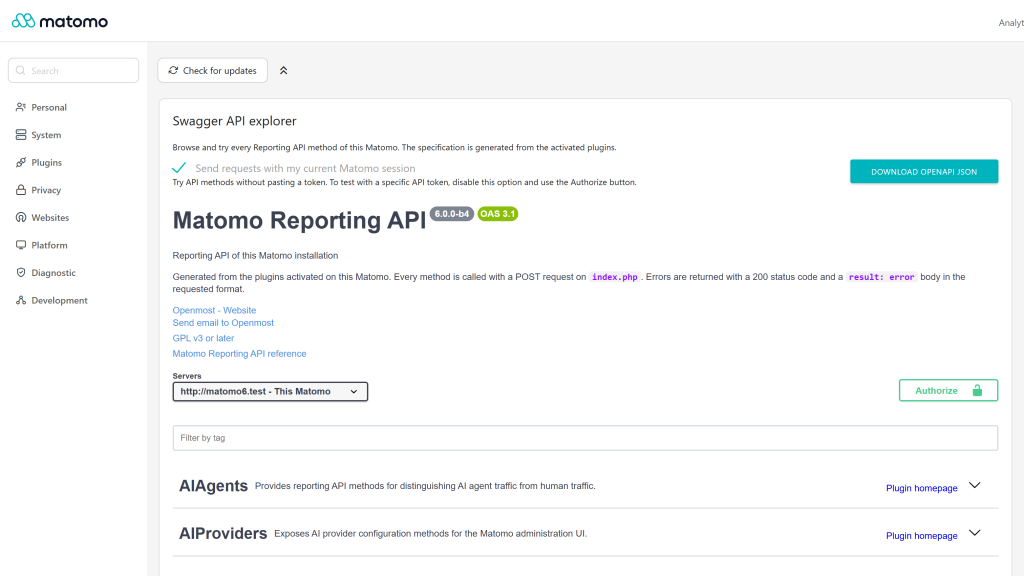
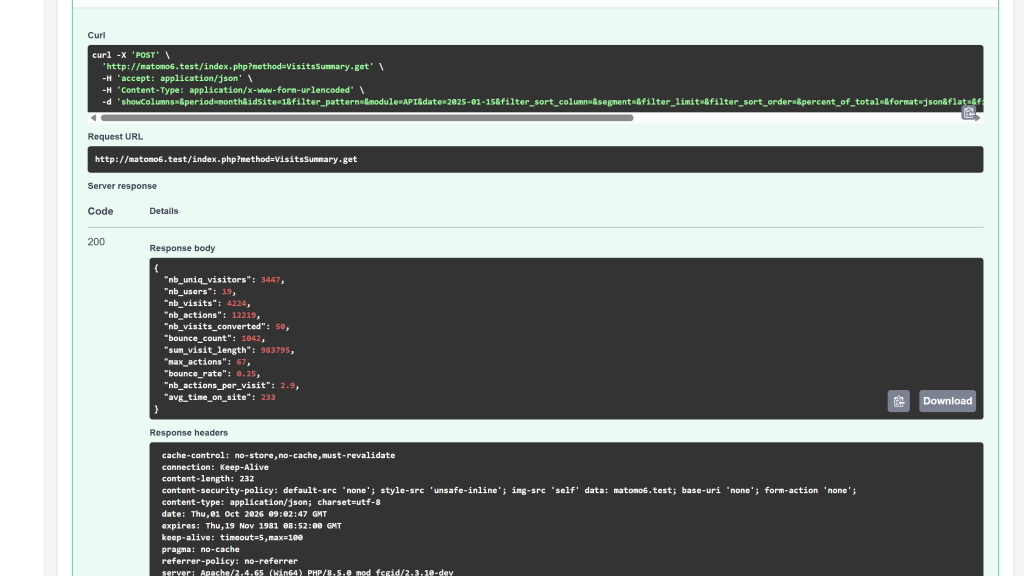
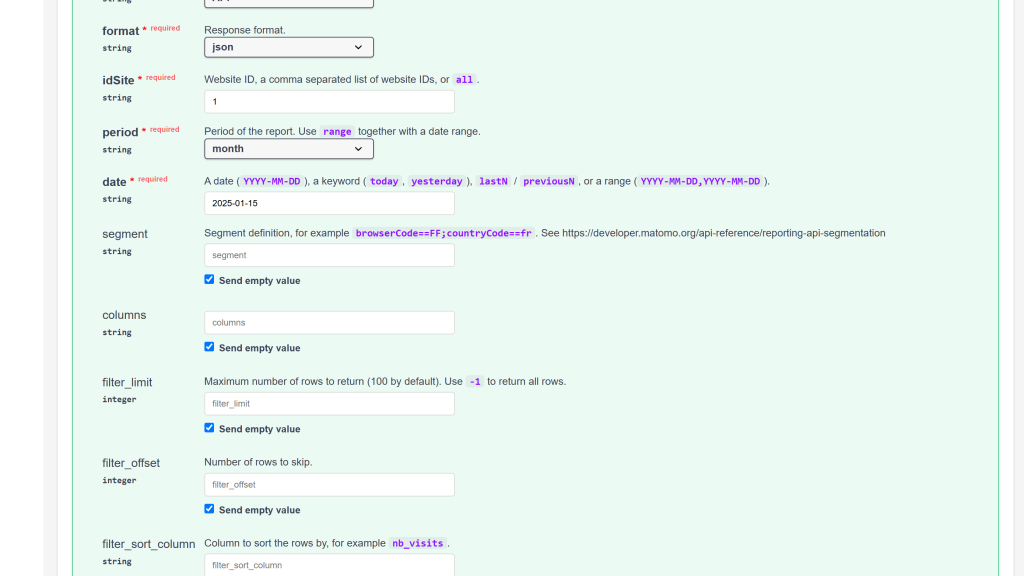
Explore and try every Matomo API method from your admin panel, with Swagger UI and an OpenAPI 3.1 specification generated live from your activated plugins.
Features
- Interactive API explorer under Administration > Platform > Swagger, powered by Swagger UI 5, with a search field to filter the API modules and dark mode that follows the Matomo theme.
- Always in sync: the OpenAPI 3.1 document is generated on demand from the plugins activated on your Matomo, so installing or removing a plugin updates it immediately. No static file to maintain.
- No token needed to try the API: "Try it out" requests use your current Matomo session. Untick the session option and use Authorize when you want to test a specific API token.
- Accurate documentation: summaries, descriptions and deprecation flags read from the method docblocks, parameters typed from the PHP signatures (
int, bool, float, array) with required flags and defaults, and request examples from Matomo's own API documentation generator.
- Matomo-aware parameters:
period, idSite (1, 1,2,3 or all), date keywords and ranges, segment and language are documented, and the generic report parameters (filter_limit, filter_offset, filter_sort_column, filter_sort_order, filter_pattern, showColumns, hideColumns, flat, format_metrics, percent_of_total) are listed on every report method.
- Works with POST-only tokens: every method is described as a POST request, and every response format Matomo can return is documented (
json, xml, csv, tsv, html, rss, original).
- Download the OpenAPI JSON in one click, for Postman, Insomnia or an SDK generator. The document is also served by the
Swagger.getOpenApi API method.
- Works from a subdirectory: the server URL keeps the path Matomo is installed in.
- Embeddable: a "Swagger API explorer" widget (About Matomo category) can be added to a dashboard or embedded with the Widgetize module.
- 12 languages: English, Arabic, Chinese (Simplified), Chinese (Traditional), Dutch, French, German, Italian, Japanese, Polish, Portuguese and Spanish.
Requirements
- Matomo 6 (
>=6.0.0-b1,<7.0.0-b1)
- A Super User account
Installation / Configuration
- Install the plugin from the Matomo Marketplace (Administration > Marketplace), or copy it to
plugins/Swagger and activate it under Administration > System > Plugins. The plugin creates no database table and leaves no data behind when deactivated.
- Open Administration > Platform > Swagger.
- Filter or expand an API module, open a method, click Try it out, fill in the parameters and click Execute.
To test with an API token instead of your session, untick Send requests with my current Matomo session, click Authorize and paste a token created under Administration > Personal > Security.
There is no setting.
Privacy and data
- The Swagger page, the widget and the
Swagger.getOpenApi method require Super User access.
- The plugin never stores tokens: a token entered with Authorize only lives in the browser tab.
- The OpenAPI document describes the API methods only. It contains no credentials, configuration values or website data.
- "Try it out" requests go to your own Matomo server only.
Need help with Matomo?
Openmost is an official Matomo Implementation Partner. When you are ready to connect Matomo to your CMS, CRM, BI tools or data warehouse, we build Matomo integrations on the official APIs, with documented data flows your team can take over.
-
API explorer generated from your plugins
-
Try it out with your Matomo session
-
Typed parameters with Matomo documentation
1 - Install the plugin
Install this plugin from the Marketplace as a Super User, or download it and copy it to the /plugins folder of your Matomo.
Then activate the plugin under Administration > System > Plugins.
2 - Open the API explorer
As a Super User, go to Administration > Platform > Swagger.
The page lists every Reporting API module of your Matomo. Use the Filter by tag field to find a module, then expand it to see its methods. The specification is generated from the activated plugins each time the page is opened: when you activate or deactivate a plugin, its methods appear or disappear automatically.
3 - Try an API method
- Expand a method, for example
VisitsSummary.get.
- Click Try it out.
- Fill in the required parameters, marked with a red asterisk. Examples are suggested for
idSite, period and date.
- Click Execute to send the request and read the response.
Report methods also document the generic parameters applied by Matomo to every report: filter_limit, filter_offset, filter_sort_column, filter_sort_order, filter_pattern, showColumns, hideColumns, flat, format_metrics and percent_of_total.
4 - Choose how requests are authenticated
With your Matomo session (default)
The Send requests with my current Matomo session option sends your requests the same way the Matomo interface calls the API. No token is needed.
The curl command displayed after a request then contains your session token. This token only works together with your browser session, but avoid sharing screenshots of it.
With an API token
To check what a specific token is allowed to do:
- Untick Send requests with my current Matomo session.
- Click Authorize and paste an API token. Tokens are created under Administration > Personal > Security.
- Click Authorize, then Close.
The token is sent in the Authorization: Bearer header and is never stored by the plugin.
5 - Download the OpenAPI specification
Click Download OpenAPI JSON to save the specification, then import it in Postman, Insomnia, an API gateway or an SDK generator such as OpenAPI Generator.
The specification can also be requested with the Matomo API, using a Super User token:
curl -X POST "https://matomo.example.com/index.php" \
  -H "Authorization: Bearer YOUR_API_TOKEN" \
  -d "module=API" \
  -d "method=Swagger.getOpenApi" \
  -d "format=json"
6 - Embed the explorer (optional)
The explorer is also available as the Swagger API explorer widget, in the About Matomo category of the dashboard. It can be embedded in another tool with the Widgetize module:
<iframe
    src="https://matomo.example.com/index.php?module=Widgetize&action=iframe&moduleToWidgetize=Swagger&actionToWidgetize=getSwaggerUi&idSite=1&period=day&date=yesterday&disableLink=1&widget=1&token_auth=YOUR_API_TOKEN"
    width="100%"
    height="900"
    frameborder="0">
</iframe>
Only Super User tokens can load the widget. Anyone who can read the page embedding the iframe can use this token, so only embed it in private tools.
How the specification is built
- Every API method is described as a POST request on
index.php, with the method name in the path and the parameters in an application/x-www-form-urlencoded body.
- Parameter types come from the PHP signature of each method. Parameters without a default value are required.
- Array parameters are sent as
name[] fields, the format PHP expects.
- Summaries and descriptions come from the documentation of each method in the source code. Deprecated methods are flagged.
- The server URL is the URL you use to open Matomo, so the explorer also works when Matomo is installed in a subfolder.
- Matomo returns API errors with a 200 status code and a
result: error body.
Troubleshooting
The page shows "You can't access this resource"
The Swagger page requires Super User access.
A plugin's methods are missing
Check that the plugin is activated. Only the API methods of activated plugins are listed.
A request returns "token_auth is not valid"
The token entered with Authorize is invalid or revoked, or the session option is unticked while no token is authorized.
A request is slow or times out
Heavy reports can take time to process. Try a shorter period and date first, or lower filter_limit.
Which Matomo versions are supported?
Version 6.x of the plugin supports Matomo 6. For Matomo 5, install version 5.x of the plugin.
Who can use the API explorer?
Only Super Users. The explorer gives access to every API method, including administration methods, so it is restricted like the other platform tools.
Do I need an API token to try the API?
No. By default, requests are sent with your current Matomo session. Use the Authorize button when you want to test a specific API token.
Can I use a token restricted to POST requests?
Yes. Every method is called with a POST request and the token is sent in the Authorization: Bearer header.
Do I need to update anything when I install a new plugin?
No. The specification is generated from the activated plugins each time the explorer is opened.
Which OpenAPI version is generated?
OpenAPI 3.1.0.
Can I import the specification in Postman or generate an SDK?
Yes. Click Download OpenAPI JSON, or request the Swagger.getOpenApi API method with a Super User token. See the documentation for an example.
Why can't I send a JSON request body?
The Matomo API reads its parameters from the query string and form fields only, so the specification describes form requests.
Can I embed the explorer in another application?
Yes, with the Swagger API explorer widget and the Widgetize module. See the documentation for an example.
Does the plugin slow down Matomo?
No. Swagger UI is only loaded on the explorer page, and the specification is only generated when the explorer is opened.
Does the plugin store data?
No. It creates no database table and never stores tokens.