Run Matomo console commands from the browser, with autocompletion and a library of every available command, when you have no SSH access to the server: shared hosting, managed platforms, locked down servers.
Features
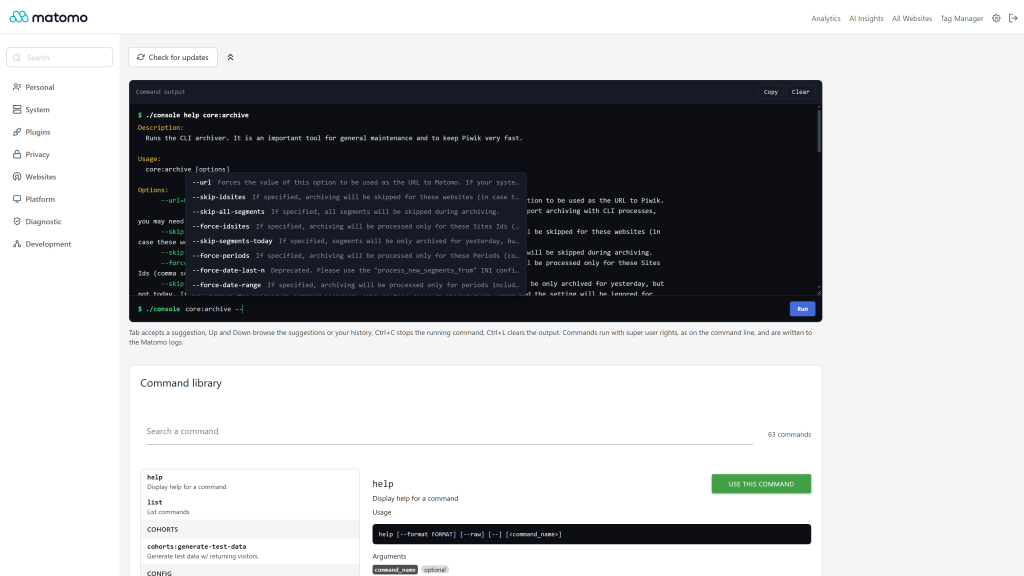
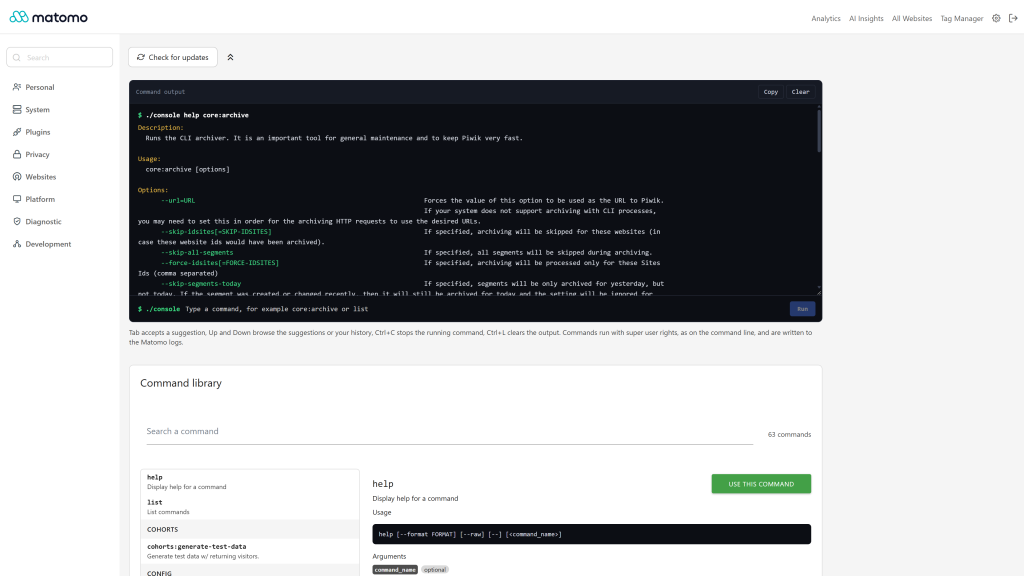
- A console in Matomo: Administration > Platform > Console, for super users only. Type a command, its output appears as it runs, with the colors of a real terminal.
- Autocompletion: command names while you type the first word, then the options of the command, with their descriptions. Tab accepts a suggestion, Up and Down browse the suggestions or the commands you ran.
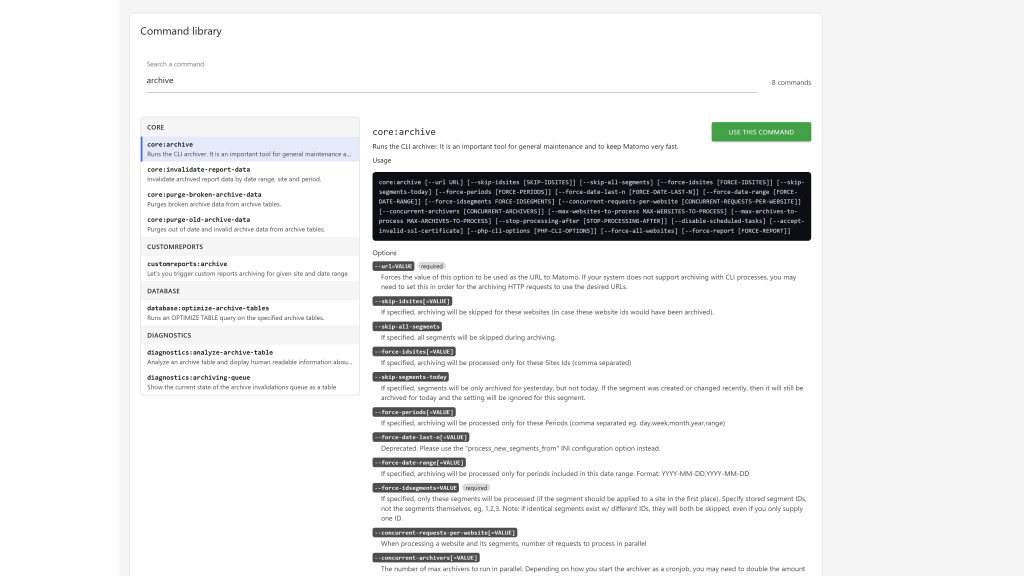
- Command library: every command of your Matomo, core and plugins, grouped by namespace and searchable, with its description, usage, arguments and options. One click inserts it in the console.
- Live output: the output is streamed while the command runs, logs included, so long commands such as
core:archive show their progress. A Stop button (or Ctrl+C) interrupts the running command, and it keeps running if you only close the page.
- No shell needed: commands run inside Matomo, the same way the
console script runs them. It works on hostings where exec(), proc_open() or SSH are disabled.
- Translated into 12 languages.
Security
- Super users only, the page and the command endpoint both check it.
- The page asks the super user to confirm their password first, like installing a plugin does, and asks again once the confirmation expires.
- Commands only run from a logged in browser session (session token, POST only). The endpoint is not part of the HTTP API, a
token_auth alone cannot run a command.
- Development commands (
development:*, generate:*, tests:*, vue:*, translations:*...), commands calling system tools through a shell (git:*, log:watch) and fake data generators (visitorgenerator:*) are never available. Plugin and Marketplace commands follow the enable_plugins_admin setting.
config:set and config:delete cannot change the [ConsoleUI] and [Development] sections, nor enable_plugin_upload, enable_plugins_admin and always_load_commands_from_plugin. core:archive --url only accepts the URL of this Matomo, --xhprof and --matomo-domain are refused.- Every command is written to the Matomo logs with the login of the super user, values of password, token, key and config options masked. The
ConsoleUI.commandExecuted event lets an audit plugin record it too.
- The server administrator can restrict or turn off the console in
config/config.ini.php, and the console cannot change that section itself:
[ConsoleUI]
; turns the console off
enabled = 0
; when set, only these commands are available
allowed_commands[] = "core:archive"
allowed_commands[] = "core:clear-caches"
; commands removed from the console, on top of the development ones
blocked_commands[] = "user:*"
Requirements
- Matomo 5.0.0 or later, up to Matomo 6 excluded (
>=5.0.0,<6.0.0-b1)
- On Matomo 6, install Console UI 6.x instead.
Installation / Configuration
- Install Console UI from the Marketplace (Administration > Platform > Marketplace) and activate it.
- Go to Administration > Platform > Console and confirm your password.
- Type a command, for example
core:archive or core:clear-caches, or pick one in the command library.
Privacy and data
The plugin stores nothing: the commands you type stay in the page and are forgotten when you leave it. Each command run is written to the Matomo logs. The plugin sends no data to third parties.
Need help with Matomo?
Openmost is an official Matomo Implementation Partner. When the console is not enough, we install, upgrade and maintain Matomo on any hosting, archiving and performance tuning included.
-
Autocompletion of commands and options
-
Command library with usage and options
-
Run Matomo console commands with live colored output
Console UI brings the Matomo console to the administration of Matomo, for the instances you cannot reach with SSH.
Running a command
Go to Administration > Platform > Console. Matomo asks for your password first, then shows the console.
Type a command and press Enter. You can paste a command from the Matomo documentation as is: the ./console, console or php console prefix is ignored. The output appears while the command runs, and the last line gives the exit code and the duration.
Commands never ask questions: they run as with the --no-interaction option, so a command expecting a confirmation uses its default answer. Add --help to a command to read its options first.
Autocompletion and history
- While you type the first word, the console suggests the matching commands.
- After the command name, it suggests its options. An option expecting a value is completed with
=.
- Tab accepts the selected suggestion, Up and Down browse the suggestions, or the commands you ran when no suggestion is open.
- Ctrl+C or the Stop button stops the running command, Ctrl+L clears the output, Copy copies it to the clipboard.
The history stays in the page and is forgotten when you leave it, as a command line may contain a password.
Command library
Below the console, the library lists every command of your Matomo, core and plugins, grouped by namespace. Search by name or description, select a command to read its usage, arguments and options, then click Use this command to insert it in the console.
Restricting the console
The server administrator controls the console in config/config.ini.php:
[ConsoleUI]
enabled = 0                          ; turns the console off
allowed_commands[] = "core:archive"  ; when set, only these commands are available
blocked_commands[] = "user:*"        ; commands removed from the console
Patterns accept * wildcards. list and help stay available. Development commands, git:*, log:watch and visitorgenerator:* are always removed, and plugin commands follow enable_plugins_admin. config:set and config:delete cannot change the [ConsoleUI] and [Development] sections, nor the plugin upload and plugins admin settings.
Stopping a command
While a command runs, the Run button becomes Stop. The command is interrupted the next time it writes output or a log line, like Ctrl+C on the command line, and ends with the exit code 130. A command that writes nothing for a while stops when it writes again.
Long commands
The output is streamed while the command runs, and the command keeps running if you close the page or lose the connection. Some hostings cut a request that sends nothing for a while (often 60 to 100 seconds): the console then reports a lost connection, check the Matomo logs to follow the command.
How do I install this plugin?
Install it from the Matomo Marketplace like any other plugin:
- Go to Administration > Platform > Marketplace
- Search for "Console UI", install and activate the plugin.
- Go to Administration > Platform > Console.
Who can use the console?
Super users only, after confirming their password. Other users do not see the menu entry, and the page and the command endpoint refuse them.
Does it need exec(), proc_open() or SSH?
No. Commands run inside Matomo, the same way the console script runs them, so the console works on shared hostings where these functions are disabled. Nothing typed in the page is handed to a shell.
Why is a command missing?
Development commands are never available from the browser. The server administrator may also have restricted the console with allowed_commands or blocked_commands in the [ConsoleUI] section of config/config.ini.php.
A command asks a question in a terminal, what happens here?
Commands run without interaction, as with --no-interaction: a question gets its default answer. Check the options of the command with --help to answer it on the command line instead, for example with --force or --yes when the command offers one.
The connection was lost during a long command, is it stopped?
No, the command keeps running on the server until it ends. Some hostings cut requests that send nothing for a minute or more. Follow the command in the Matomo logs.
Are the commands I run recorded?
Yes. Each command is written to the Matomo logs with the login of the super user who ran it, with the values of password, token or key options masked.
How do I turn the console off?
Add enabled = 0 under a [ConsoleUI] section of config/config.ini.php, or deactivate the plugin.