Inject your own HTML, CSS and JavaScript into every page of the Matomo interface, from a code editor that checks your syntax as you type.
Features
- Two injection points: right after the opening
<body> tag and right before the closing </body> tag, through the native Template.bodyTop and Template.bodyBottom hooks
- Dedicated admin page: edit the code in Administration > System > Code Injector, saving asks for your password like any system setting
- Code editor: HTML editor with embedded CSS and JavaScript syntax highlighting, in a light or dark palette that follows the Matomo theme
- Live syntax checks: HTML, CSS, JavaScript and JSON-LD (
<script type="application/ld+json">) errors, unclosed <script> and <style> tags, and code pasted without any tag. Problems are listed next to the field and never block saving
- Safe mode: the code is never injected on the Code Injector page, so a snippet that breaks the interface can always be fixed or removed
- API:
CodeInjector.getCode returns the code and CodeInjector.setCode saves it (super user only, password confirmation required)
- Interface translated into 12 languages
Requirements
- Matomo 6.0.0 or higher, below 7.0.0
- PHP 8.1 or higher
Installation / Configuration
- Install and activate the plugin from the Matomo Marketplace (Administration > Platform > Marketplace).
- Go to Administration > System > Code Injector.
- Paste your code in one of the two editors. Wrap CSS in a
<style> tag and JavaScript in a <script> tag.
- Click Save and confirm your password.
Only super users can see the page and edit the code. Once saved, the code runs in every page of the Matomo interface, for every user, including the login page. It is not added to the JavaScript tracker or to Tag Manager containers.
Privacy and data
The code is stored in the Matomo database as a plugin system setting. The plugin itself sends nothing outside your Matomo instance, but the code you inject runs in the browser of every Matomo user: only paste code you understand and trust.
Need help with Matomo?
Openmost is an official Matomo Implementation Partner. When injected code grows beyond a few tweaks, we turn it into a custom Matomo plugin, built from a written spec, tested on the Matomo versions you run and maintained over time.
-
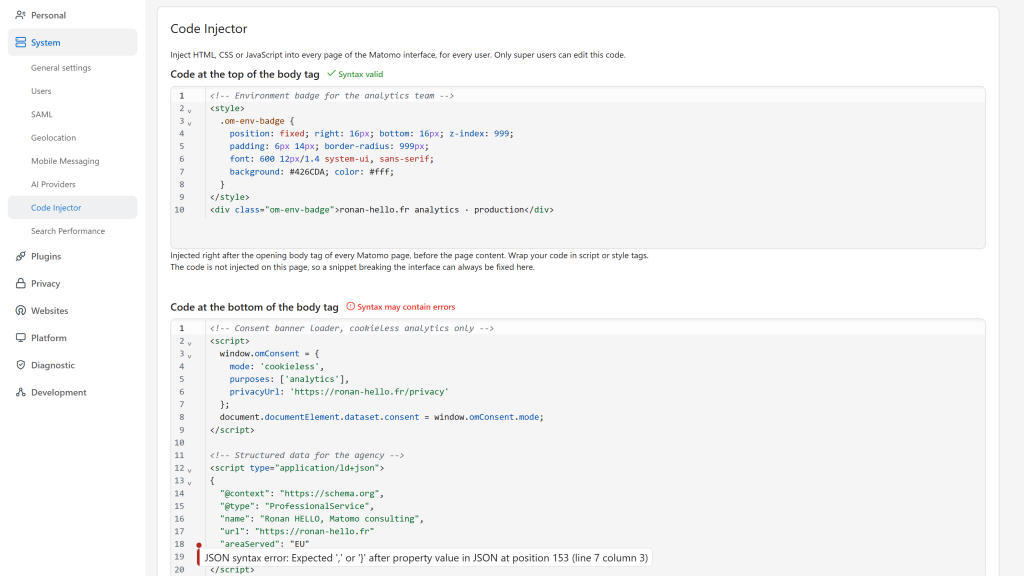
Code editor with live syntax check
-
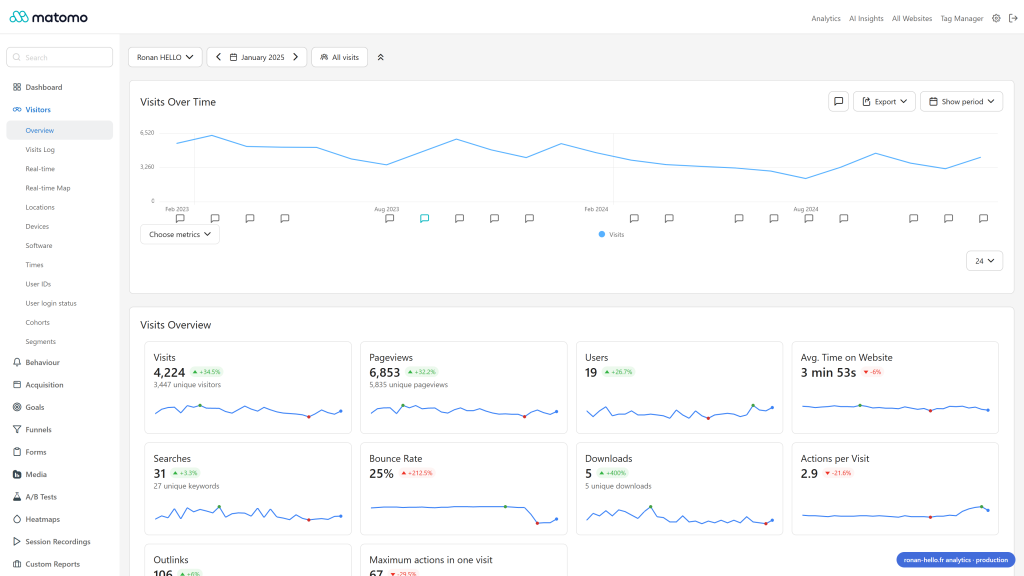
Injected code running in Matomo
-
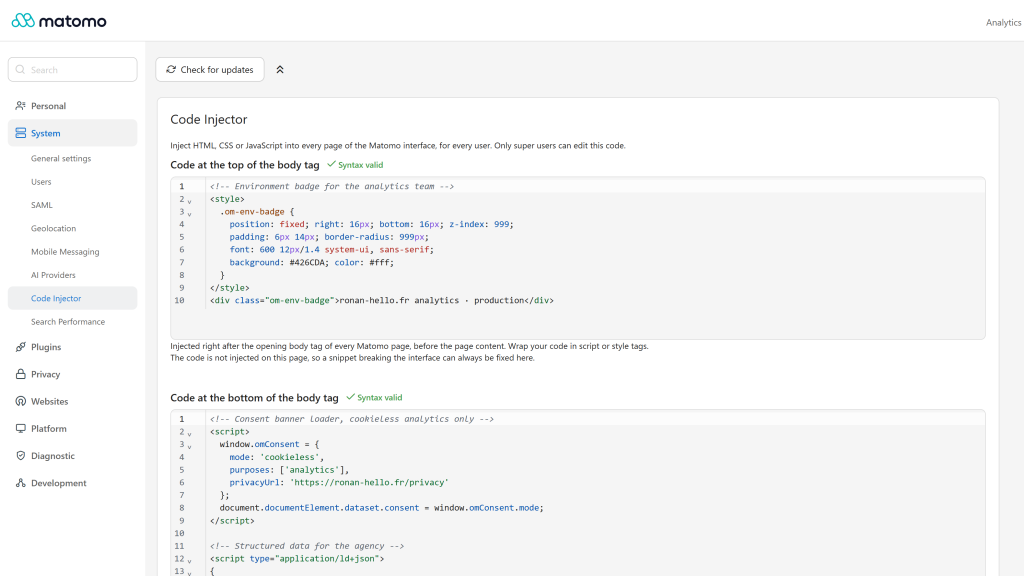
Two injection points top and bottom of body
This plugin adds two code editors in Administration > System > Code Injector, where you can paste your HTML, CSS and JavaScript code.
Use cases
- Add CSS to customize your UI without creating a theme
- Add CSS to fix small display issues
- Add JavaScript to enhance the user experience
- Add a tracking code to measure how your team uses Matomo
- Add a chat or support widget
- Load external JavaScript libraries in Matomo
Where the code is injected
The code is injected in every page of the Matomo interface (reporting, dashboard, administration, Tag Manager, login page) using the native Matomo hooks:
Template.bodyTop: right after the opening <body> tag, before the page contentTemplate.bodyBottom: right before the closing </body> tag, after the page content
Your code must be wrapped in the right tags, for example:
<style>
  .card { border-radius: 12px; }
</style>

<script>
  console.log('Hello from Code Injector');
</script>
Code editor
Each field is a code editor with HTML, CSS and JavaScript syntax highlighting, in a light or dark palette that follows the Matomo theme. While you type, the editor checks your code and shows a status next to the field title:
- HTML syntax errors, like a closing tag that does not match its opening tag
- CSS syntax errors in
<style> tags, like a missing or extra brace
- JavaScript syntax errors in
<script> tags
- JSON syntax errors in
<script type="application/ld+json"> tags
<script> and <style> tags that are never closed- Code pasted without any
<script> or <style> tag, which would be displayed as text
Click the status to list the problems. These checks never block saving.
Safe mode on the Code Injector page
The code is never injected on the Code Injector page. If a snippet breaks the Matomo interface, go back to this page to fix or remove it.
Warning
Only super users can edit this code, and it runs for every user of your Matomo instance.
Don't paste code you don't understand.
How to install this plugin?
This plugin is available in the official Matomo Marketplace. Install it the same way as other plugins:
- Go to the administration panel
- Open the Marketplace section and select "Plugins"
- Search for "CodeInjector", install and activate the plugin
Where do I paste my code?
Go to Administration > System > Code Injector.
Who can edit the injected code?
Only super users can edit the code. Once saved, the code runs in every page of the Matomo interface, for all users.
My code is displayed as text at the top of the page, why?
Your code is not wrapped in tags. Put your CSS in a <style> tag and your JavaScript in a <script> tag. The editor warns you when the tags are missing.
My code broke the Matomo interface, how do I fix it?
The code is never injected on the Code Injector page: open Administration > System > Code Injector (index.php?module=CodeInjector&action=index) and fix or remove your code.
Is my code injected in the tracked websites?
No, the code is only injected in the Matomo interface, not in the JavaScript tracker or the Tag Manager containers.
Which versions of Matomo are supported?
Version 6.x of the plugin supports Matomo 6, it requires PHP 8.1 or higher and MySQL 8.0 or MariaDB 10.6 or higher. For Matomo 5, use version 5.x of the plugin.
How can I contribute to this plugin?
Open an issue or a pull request on GitHub, or contact us at openmost.com.
How long will this plugin be maintained?
As long as possible. We use Matomo and this plugin on many projects every day, so issues are fixed as fast as possible.