-
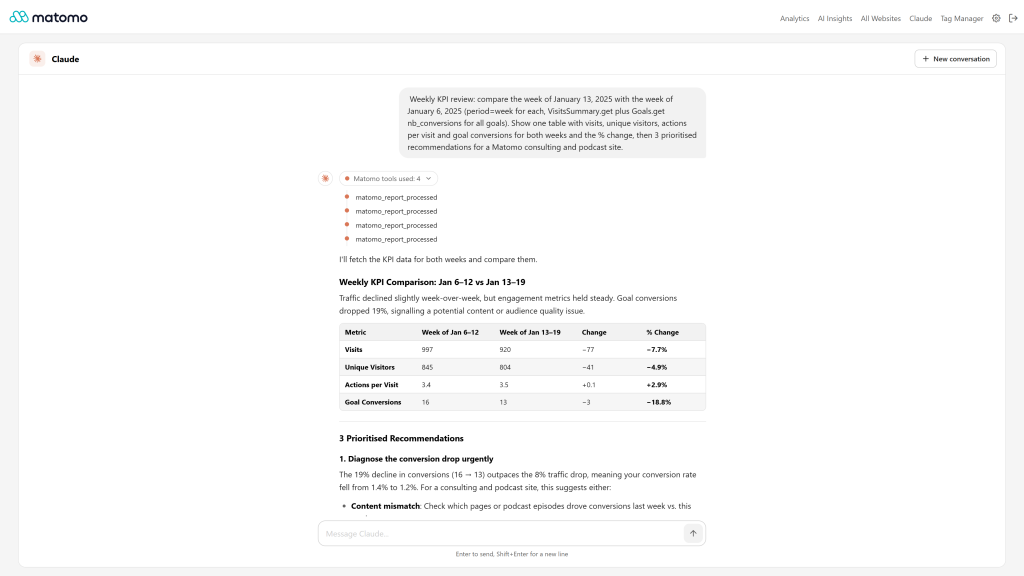
Agent mode weekly KPI review with tool steps
-
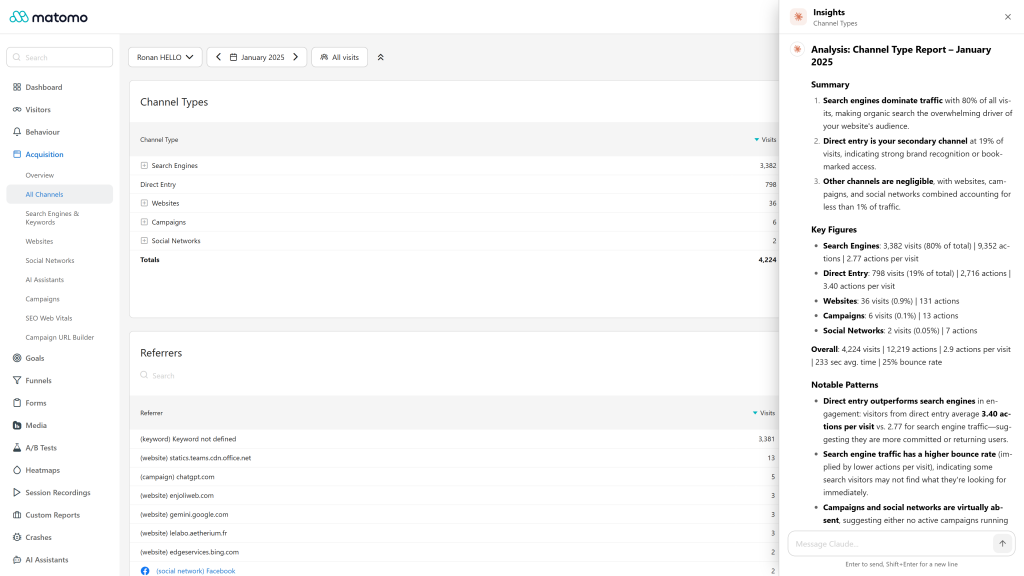
Insights on any report in one click
-
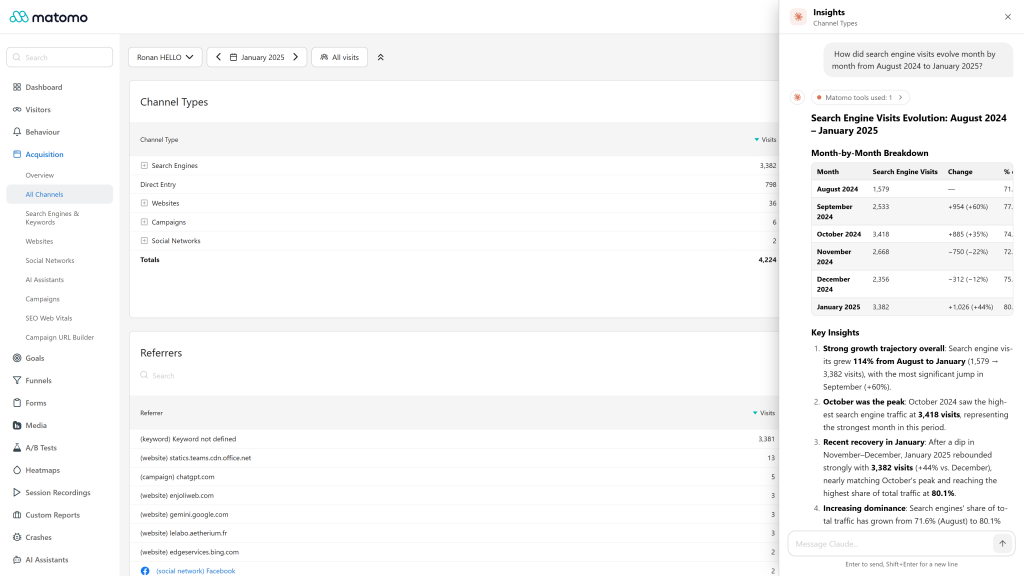
Insights panel follow up question with live data
-
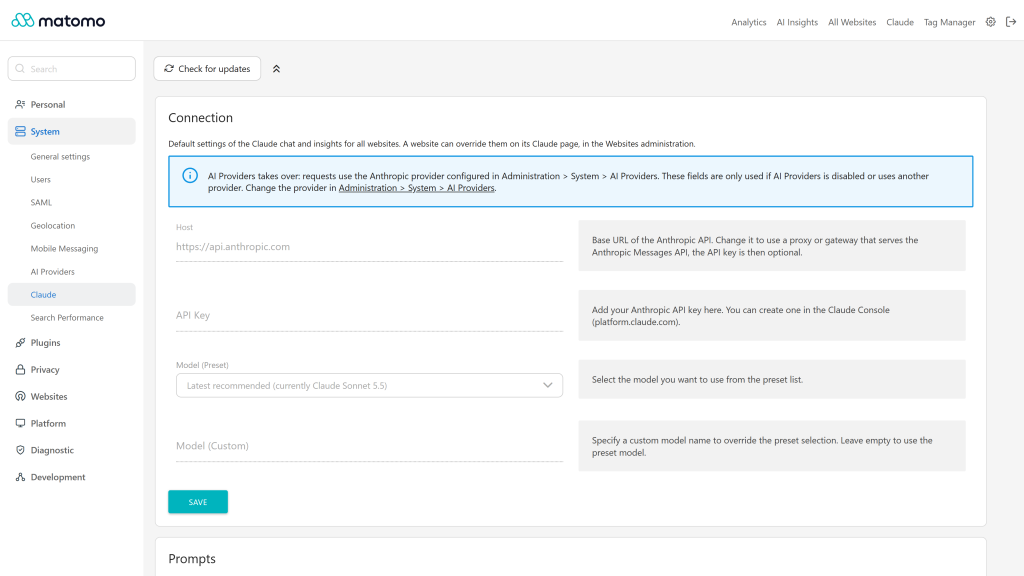
Settings connection and prompts
Features
Insights on any report
- An Insights button in the report header opens an insight panel that analyses the report you are looking at, then lets you ask follow-up questions.
- The whole report is analysed, not only the rows visible on screen: the plugin sends a compact payload with the rows, the report totals and the names and units of the metrics.
- The analysis follows what you see: the active segment, the period and date, and the compared periods or segments.
- Works with data tables, evolution graphs, goals, ecommerce, custom dimensions, custom reports, row evolution and the other reports Matomo declares as widgets.
- When a widget has no report data, or the report cannot be loaded (for example a missing access), a clear message is displayed instead of sending the error to the model.
- The panel is an accessible dialog: keyboard navigation, focus kept inside the panel, Escape to close. Opening it closes the insight panel of the other Openmost AI plugins, so two panels never overlap.
Chat
- A Claude page in the main menu, with suggested questions to start a conversation and a "New conversation" button.
- Streaming answers, with an automatic fallback when the endpoint does not stream.
- Auto-scroll that follows the answer while it is written, stops when you scroll up, and a button to jump back to the latest message.
- Markdown answers with scrollable tables and code blocks, and buttons to copy an answer or a code block.
- Enter sends the message, Shift+Enter adds a new line.
Agent mode, with MCP Server
When the McpServer plugin is enabled, the chat and the insight panel work as an agent, with the Anthropic key of the plugin settings or with the Anthropic provider of AI Providers:
- The agent queries your live reports, websites, goals, dimensions and segments by itself, for any period, to answer with real figures.
- A timeline shows each Matomo tool used for an answer and its status.
- Tools run inside Matomo with the permissions of the current user: no public URL, OAuth client or extra token is needed.
- Write actions (for example creating a goal, an annotation or a segment) are only possible when McpServer allows write methods, and only after the agent has described the exact change and you have confirmed it explicitly in the conversation. This rule is added outside the editable prompts, so it cannot be removed by a custom prompt.
- When something is missing, the chat recommends the next step, one at a time: install, activate or enable MCP Server, allow write methods, and without an Anthropic key in the plugin settings, activate AI Providers and connect Anthropic. Super users get a direct link for each step, other users are asked to contact their Matomo administrator.
The agent mode is optional. Without McpServer, Claude answers without tools.
Connection and models
- Uses the Anthropic Messages API (
https://api.anthropic.com/v1/messages) with your Anthropic API key, or the Anthropic provider connected in AI Providers. - One key is enough, used in this order: the API key set for the website, then AI Providers when its provider is Anthropic, then the general API key of the plugin. The credential of another AI Providers provider is never used. Keys are never copied from one place to another.
- When Anthropic is connected in AI Providers, it takes over: the host, API key and model of the general settings are displayed read-only, and are used again if AI Providers is deactivated or uses another provider. A key set for a website still overrides AI Providers for that website.
- The host can be changed to a proxy or gateway that serves the Anthropic Messages API over HTTPS. The API key is optional on a custom host.
- The general API key is only sent to the general host: a website using its own host never receives it.
- Preset models: Latest recommended (the default, which follows the model recommended by each plugin release, currently Claude Sonnet 5.5), Claude Sonnet 5.5, Claude Opus 5.5, Claude Fable 5.1, Claude Haiku 4.5 and the previous models Anthropic still serves, or any custom model name.
- When a model is deprecated, retired or not available to your Anthropic account, the chat explains it and links to the settings instead of showing the raw API error. An invalid key, a rate limit and an overloaded API are explained in the language of the user too.
Prompts
- Default prompts written for analytics: the chat answers as a senior analytics consultant (direct answer, key figures, prioritised recommendations, no invented figures), and insights follow a fixed structure (summary, key figures, notable patterns, recommendations).
- A prompt equal to the default is not stored, so future improvements of the defaults reach you. A Reset to default button restores the default prompts. Custom prompts are kept.
More
- Interface translated into 13 languages: English, Arabic, Chinese (Simplified and Traditional), Dutch, French, German, Italian, Japanese, Polish, Portuguese, Spanish and Swedish.
- Follows the Matomo light and dark themes.
- Rate limit of 30 AI requests per hour, per user and per website.
- HTTP API:
Claude.getResponse,Claude.getStreamingResponse,Claude.getInsights,Claude.getSiteSettings,Claude.setSiteSettingsandClaude.setSystemSettings.
Requirements
- Matomo 6.x (
>=6.0.0-b1,<7.0.0-b1) - PHP 8.1 or higher
- One of: an Anthropic API key, an HTTPS proxy or gateway serving the Anthropic Messages API, or the Anthropic provider connected in AI Providers
- Optional, for the agent mode: the McpServer plugin from the Marketplace. Write actions also require write methods to be allowed in the McpServer settings (Raw Matomo API tool access).
Installation / Configuration
- Install and activate Claude from Administration > Platform > Marketplace.
- As a super user, open Administration > System > Claude:
- Connection card: host (an HTTPS URL,
https://api.anthropic.comby default), API key and model. Each card is saved on its own. The saved key is never displayed, and a Delete key button removes it. Create an API key in the Claude Console (https://platform.claude.com). - Privacy card: check Allow sending Matomo data to the AI provider, off by default. Until a super user checks it, nothing is sent to the provider. The card shows where the data goes, and masks e-mail and IP addresses, removes URL query strings and excludes visitor-level data, all three on by default.
- Prompts card: chat and insight base prompts, with a Reset to default button.
- If Anthropic is connected in Administration > System > AI Providers, the connection fields are read-only and AI Providers is used.
- Connection card: host (an HTTPS URL,
- Optionally, override the settings for a website in Administration > Websites > Claude (website admin access): host, API key, model and prompts, with a Delete key button and a Use the general prompts button. Empty fields use the general settings.
- For the agent mode, install, activate and enable McpServer (Administration > System > General settings > McpServer). The chat guides you through each missing step.
Then open the Claude page in the main menu, or click the Insights button in the header of a report.
Privacy and data
- Insights send the data of the report you are looking at (labels, metrics and totals), its period, segment and comparisons, and the conversation, to the configured endpoint: the Anthropic API by default, your custom host, or the Anthropic provider of AI Providers.
- The chat sends your messages and the prompt. In agent mode, the results of the Matomo tools the agent calls are also sent to Anthropic.
- Nothing is sent to the AI provider until a super user checks Allow sending Matomo data to the AI provider in Administration > System > Claude, Privacy card. It is off by default: until then, the chat and the insights tell users to ask a super user to allow it.
- Before sending, e-mail and IP addresses are replaced with
[email]and[ip], and URL query strings are removed, in the report data and in the results of the Matomo tools. Both are on by default and can be turned off in the same Privacy card. - Visitor-level data (Visits Log, visitor profiles, real-time and User ID reports) is excluded by default: the insights and the agent cannot read it until a super user unchecks Exclude visitor-level data.
- Insight requests are restricted to the report and data methods of widgets declared by Matomo, never to an arbitrary API method, and run with the permissions of the current user.
- API keys are stored in the Matomo settings and are never sent back to the browser. Conversations are not stored by the plugin.
How do I install and configure this plugin?
- Install and activate Claude from Administration > Platform > Marketplace.
- As a super user, open Administration > System > Claude and set the API key and model in the Connection card, or connect Anthropic in Administration > System > AI Providers. In the Privacy card, check Allow sending Matomo data to the AI provider: it is off by default.
- Optionally, override the settings for a website in Administration > Websites > Claude.
You can also download the plugin from GitHub, extract it to your plugins/ folder and activate it.
The chat says that data sharing is not allowed
No Matomo data leaves your instance without an explicit decision: a super user must check Allow sending Matomo data to the AI provider in Administration > System > Claude, Privacy card. Other users are asked to contact a super user.
What do I need to make it work?
One of: an Anthropic API key (create one in the Claude Console, https://platform.claude.com), an HTTPS proxy or gateway that serves the Anthropic Messages API, or the Anthropic provider connected in AI Providers. On a custom host, the API key is optional: without a key, no x-api-key header is sent.
Which API key is used?
One key is enough. The plugin uses, in this order: the API key set for the website in Administration > Websites > Claude, then AI Providers when its provider is Anthropic, then the API key of the general settings. Keys are never copied from one place to another.
When Anthropic is connected in AI Providers, it takes over: the host, API key and model of the general settings are displayed read-only, and are used again if AI Providers is deactivated. A key set for a website still overrides AI Providers for that website.
AI Providers is connected to another provider. Does Claude use it?
No. The plugin only takes over AI Providers when its provider is Anthropic: the credential of another provider is never sent anywhere by this plugin. With another provider, Claude uses its own API key, and the chat recommends connecting Anthropic in AI Providers when no key is set.
How do I remove a saved API key?
Use the Delete key button of the Connection card, on the general settings page or on the settings page of the website. Leaving the field empty keeps the saved key.
Which models are in the preset list?
- Latest recommended (default): follows the model recommended by each plugin release, currently Claude Sonnet 5.5, the best balance of speed and quality for a conversation about your reports
- Claude Sonnet 5.5, Claude Opus 5.5, Claude Fable 5.1, Claude Haiku 4.5
- Previous models still served by Anthropic: Claude Opus 5, Claude Sonnet 5, Claude Fable 5, Claude Opus 4.8, Claude Sonnet 4.6
Type any other model ID in the Model (Custom) field.
The chat says my model is not available
Anthropic retires old models, and some models are not available to every account. Choose another model in the settings, for example "Latest recommended". The chat links to the settings page you can change.
The chat says my key was refused, or that Anthropic is overloaded
A refused key (HTTP 401) means the key is wrong, revoked or expired: check it in the settings. A rate limit (HTTP 429) tells you when to try again, and an overloaded API (HTTP 529) is temporary: the plugin retries a few times before it reports the error.
What is the agent mode?
When the McpServer plugin is enabled, the chat and the insight panel work as an agent: they query your live reports, websites, goals, dimensions and segments through the Matomo tools to answer with real figures. A timeline shows each tool used. The agent works with the Anthropic key of the plugin settings and with the Anthropic provider of AI Providers.
To enable it, install, activate and enable McpServer in Administration > System > General settings > McpServer. The chat recommends each missing step, with a direct link for super users.
Can the agent change things in Matomo?
Only if McpServer allows write methods (Raw Matomo API tool access), and only with your confirmation: before any create, update or delete, the agent describes the exact change and waits for your explicit confirmation in the conversation. This rule cannot be removed by a custom prompt. The agent never has more access than the current user.
Do I need to expose my Matomo instance or configure OAuth for the agent?
No. The agent calls the Matomo tools inside your Matomo, with the permissions of the logged in user. It also works on private and intranet instances.
Does the plugin work without the agent mode?
Yes. Without McpServer, the chat and the insights answer without tools.
What do insights analyse?
The whole report you are looking at, not only the visible rows: its rows, totals and metrics, with the active segment, period and comparisons. Insights work on data tables, evolution graphs, goals, custom reports and the other reports Matomo declares as widgets.
Can I use Claude together with the other Openmost AI plugins?
Yes. Each plugin has its own button and page. Opening the insight panel of one plugin closes the panel of the others, so they never overlap.
Can I customise the prompts?
Yes, in the Prompts card of the general settings or of a website. The Reset to default button restores the default prompts, and on a website, Use the general prompts makes it follow the general prompts again. Custom prompts are kept when the defaults are improved.
Is my data sent to Anthropic?
Insights send the data of the report you are looking at (labels, metrics, totals, period, segment and comparisons) and the conversation to the configured endpoint: the Anthropic API by default, your custom host, or the Anthropic provider of AI Providers. In agent mode, the results of the tools the agent calls are sent too. Raw visitor data is never sent, unless the report itself contains it, such as the Visits Log. Conversations are not stored by the plugin.
Is there a usage limit?
Yes, 30 AI requests per hour, per user and per website, to protect your API budget.
Which languages are supported?
English, Arabic, Chinese (Simplified and Traditional), Dutch, French, German, Italian, Japanese, Polish, Portuguese, Spanish and Swedish.
What are the requirements?
- Matomo 6.x
- PHP 8.1 or higher
- An Anthropic API key, or Anthropic connected in AI Providers
- For the agent mode: the McpServer plugin
How do I get support?
Email ronan@openmost.com, or open an issue on GitHub. More on https://openmost.com/matomo/extensions/claude.
Version
6.1.0
License
Keywords
chat, ai, assistant, insight, insights, claude, agent, anthropic
Last Updated
Oct 6th 2026
Requirements
Matomo >=6.0.0-b1,<7.0.0-b1
PHP >=8.1.0
Matomo 5.x, Matomo 6.x
Downloads
4
Changelog
Support
ronan@openmost.com
View and download this plugin for a specific Matomo version:
- Matomo 5.x
- Matomo 6.x (currently selected)