Extend the Matomo Tag Manager with 36 ready-to-use tag templates, extra triggers and variables, bulk actions and a Custom HTML code editor with syntax validation.
Features
Tag templates
Each advertising and social pixel is a complete tag: it loads the base library, initialises the pixel and sends the selected event (page view by default, standard conversion events or a custom event). Where the platform supports it, an event ID can be sent for server-side (Conversions API) deduplication. Every field accepts Matomo variables ({{...}}). Each tag and variable template comes with a help text explaining what it does and how to set it up, in the 12 languages of the interface.
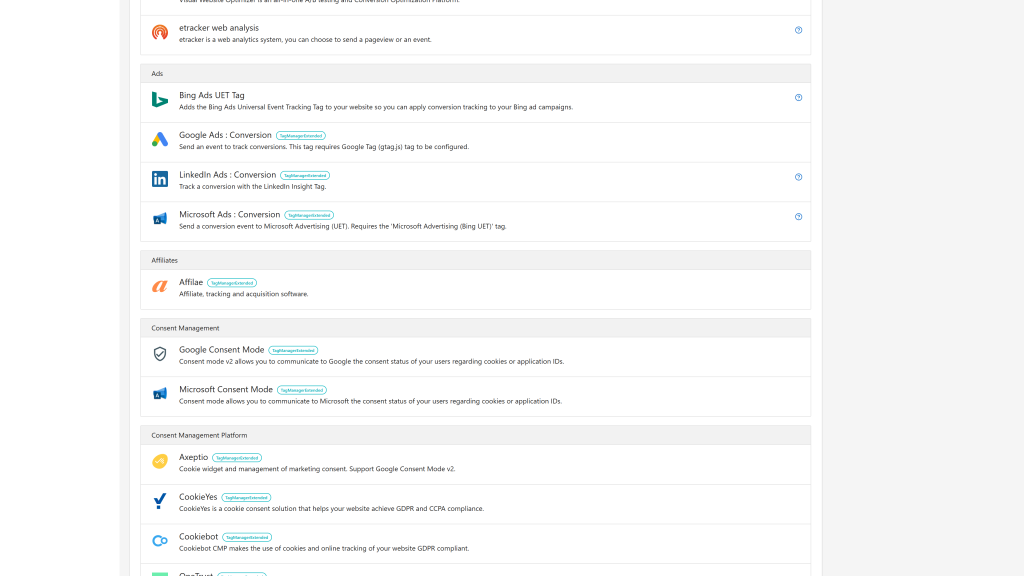
- Ads: ChatGPT Ads Pixel (OpenAI), Google Ads : Conversion, LinkedIn Ads : Conversion, Microsoft Ads : Conversion
- Social: Meta Pixel, TikTok Pixel, Pinterest Tag, Snapchat Pixel, X (Twitter) Pixel, Reddit Pixel
- Analytics: Google Tag (gtag.js), Google Analytics 4 : Event, Google User-Provided Data, Matomo Analytics : Ecommerce, Matomo Analytics : Search, Hotjar, Microsoft Clarity, Simple Analytics, ListenLayer
- Consent management: Google Consent Mode (v2), Microsoft Consent Mode, Axeptio (with Google Consent Mode v2 support), Cookiebot, CookieYes, OneTrust
- Remarketing and support: Criteo OneTag, Crisp, Intercom
- Email: Brevo, Klaviyo
- Affiliates: Affilae
- Others: HubSpot, Slack, Alert, Console, DataLayer Synchronisation (deprecated since Matomo 5.2)
When a template replaces a built-in Tag Manager template (Google Tag, Google Ads, Google Analytics 4 event, Google Consent Mode, Hotjar and some consent platforms), the built-in one is hidden so only one version is listed.
Triggers
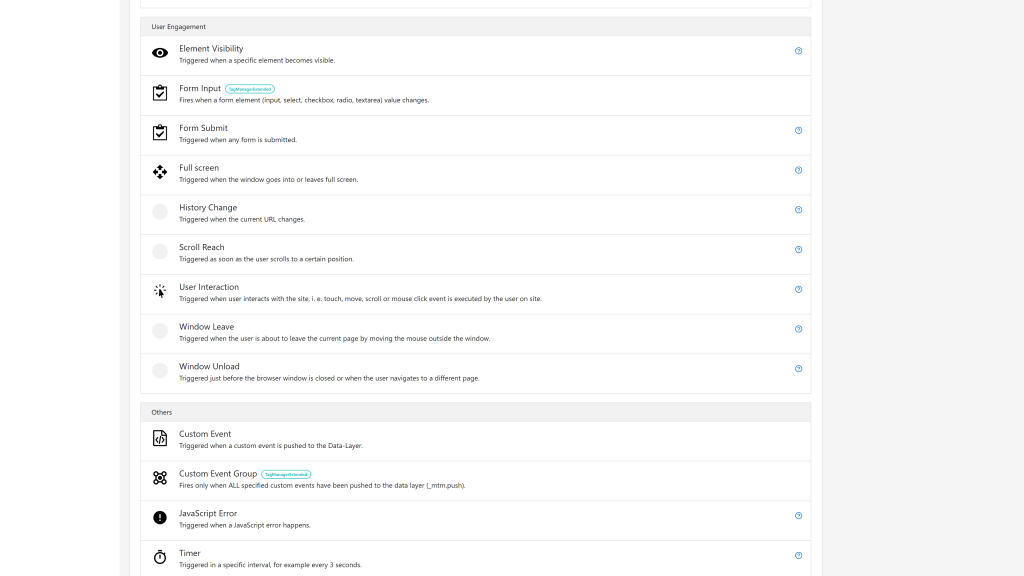
- Custom Event, with regular expression matching
- Custom Event Group: fires only when all the required events have occurred
- Form Input: fires when a form field changes (input, select, checkbox, radio, textarea)
Variables
- LocalStorage and SessionStorage values
- Date with a custom format
- Click data-attribute: any
data-* attribute of the clicked element
- Form Input values: Value, Name, ID, Type, Element, Checked, Classes, Selected Text
Custom HTML code editor
The Custom HTML tag gets a code editor:
- HTML, JavaScript and CSS syntax highlighting, in a light or dark palette that follows the Matomo theme, with line numbers, auto-indentation, auto-closing tags and autocompletion
- Live validation of the JavaScript and JSON-LD (
<script type="application/ld+json">) blocks: errors are underlined as you type, and a "Valid syntax" / "Code may contain errors" indicator lists them
- Matomo variables (
{{...}}) are supported by the validator and the variable picker still inserts them at the cursor position
- The validator never blocks saving
Bulk actions
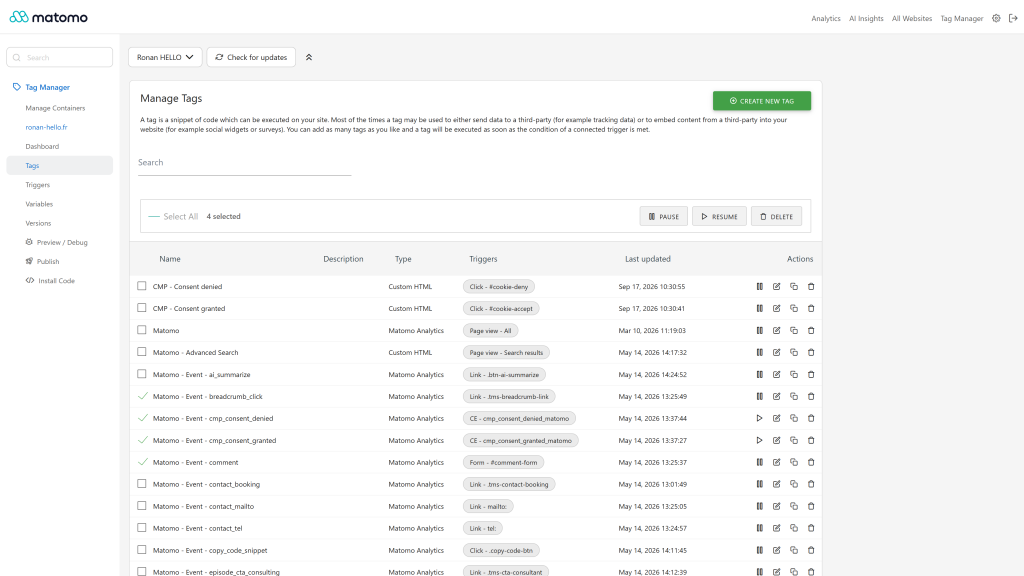
- Select several tags, triggers or variables in a container
- Delete them in one action, or pause and resume several tags at once
- Available to every user with write access to the container
Safer lists
Tags, triggers and variables whose type is no longer available (for example after a plugin was removed) are shown as "Unavailable type (...)" instead of breaking the Tag Manager list, so they can be edited or deleted.
This protection only works while TagManagerExtended is active. Before you deactivate or uninstall it, delete the tags, triggers and variables created from its templates: Matomo Tag Manager cannot display an entity whose template is not available, its list then stays on "Loading data".
The interface is translated into 12 languages.
Requirements
- Matomo 5.2.0 or higher, below 6.0.0 (the bulk Pause and Resume actions use the tag pausing of the Tag Manager bundled since Matomo 5.2)
- The Matomo TagManager plugin, activated
Installation / Configuration
- Install and activate the plugin from the Matomo Marketplace (Administration > Platform > Marketplace).
- Open Tag Manager for a website: the new templates are listed when you create a tag, trigger or variable, and the bulk actions are available on the tags, triggers and variables lists.
There is nothing else to configure. The plugin is available to every Tag Manager user of the instance.
Privacy and data
The plugin does not send any data by itself. The tags you publish load the scripts of the third-party platforms you choose (Meta, TikTok, Google, LinkedIn...) in your visitors' browsers, and those platforms receive the data you configure in each tag. Use a consent management tag and triggers to respect your visitors' consent.
Need help with Matomo?
Openmost is an official Matomo Implementation Partner. We design Matomo tracking plans and implement them in Matomo Tag Manager, with tags, triggers, variables and a data layer where needed, documented so your team can maintain them.
-
Bulk actions on selected tags
-
Custom HTML editor with live syntax validation
-
More tag templates ads and consent
-
More trigger templates
-
More variable templates
1 - Install the plugin from the marketplace or via GitHub
Install this plugin from the Marketplace as super user or download the plugin and install it on your server from FTP in
the /plugins folder.
As a super user, enable the plugin in Administration > Platform > Plugins.
2 - Use the new tags, triggers and variables
This plugin adds tags, triggers and variables to the Tag Manager to let you deploy other solutions in seconds. They are listed with the built-in templates when you create a tag, a trigger or a variable. Each tag and variable template comes with a help text explaining what it does and how to set it up, for example which tag must be loaded first or when to fire it.
3 - Write Custom HTML with syntax highlighting and a JavaScript validator
The Custom HTML tag comes with a real code editor:
- Syntax highlighting for HTML, JavaScript and CSS, in a light or dark palette that follows the Matomo theme, with line numbers, auto-indentation, auto-closing tags and autocompletion.
- JavaScript syntax validator: the code of your
<script> blocks is checked while you type. Errors are underlined in the editor and marked in the margin, hover them to read the message.
- JSON-LD validation:
<script type="application/ld+json"> blocks are checked too.
- A "Valid syntax" / "Code may contain errors" indicator is displayed next to the field. Click it to open the list of errors.
- Matomo variables (
{{PageUrl}}...) are supported by the validator, and the variable picker inserts them at the cursor position.
The validator only reports syntax errors and never prevents you from saving your tag.
4 - Manage your container with bulk actions
On the tags, triggers and variables lists, select several items to delete them in one action. Tags can also be paused or resumed in bulk. Bulk actions are available to every user with write access to the container.
List of available tags :
[Ads]
- ChatGPT Ads Pixel
- Google Ads : Conversion
- LinkedIn Ads : Conversion
- Microsoft Ads : Conversion
[Affiliates]
[Analytics]
- Matomo Analytics : Ecommerce
- Matomo Analytics : Search
- Google Analytics 4 : Event
- Google Tag (gtag.js)
- Google User-Provided Data
- Hotjar
- ListenLayer
- Microsoft Clarity
- Simple Analytics
[Consent Management]
- Google Consent Mode (v2)
- Microsoft Consent Mode
[Consent Management Platform]
- Axeptio (support Google Consent Mode v2)
- CookieYes
- Cookiebot
- OneTrust
[Email]
[Openmost]
- DataLayer Synchronisation (deprecated since Matomo 5.2)
[Remarketing]
- Criteo OneTag
- Crisp
- Intercom
[Social]
- Meta Pixel
- Pinterest Tag
- Reddit Pixel
- Snapchat Pixel
- TikTok Pixel
- X (Twitter) Pixel
[Others]
- Alert
- Console
- HubSpot
- Slack
List of available triggers :
[Others]
- Custom Event (enhanced with regex support)
- Custom Event Group
[User Engagement]
List of available variables :
[Page Variables]
- LocalStorage
- SessionStorage
[Date]
[Clicks]
[Forms]
- Form Input - Value
- Form Input - Name
- Form Input - ID
- Form Input - Type
- Form Input - Element
- Form Input - Checked
- Form Input - Classes
- Form Input - Selected Text
How to install this plugin?
This plugin is available in the official Matomo Marketplace. Install it the same way as other plugins:
- Go to the administration panel
- Look for the Marketplace section and select "Plugins" in the dropdown
- Then search for "Tag Manager Extended", install and activate the plugin.
Is the plugin active for all Matomo users in my instance?
Yes, if you choose this plugin for your Matomo instance, all users will be able to use it.
How can I contribute to this plugin?
Open an issue or a pull request on GitHub, or contact us at ronan@openmost.com.
How long will this plugin be maintained?
As long as possible. We use Matomo and this plugin on many projects every day, so issues are fixed as fast as possible.
Why do I see "Unavailable type (...)" on some of my tags, triggers or variables?
This label appears when an entity in your container references a type that is no longer registered on your Matomo instance. It typically happens when:
- a plugin that used to provide this type has been uninstalled or disabled,
- a built-in Tag Manager type has been replaced or removed by another plugin,
- a custom template has been deleted.
Without this fallback the Tag Manager list page would not render at all (Vue would crash with Cannot read properties of null (reading 'description')). The placeholder lets you keep the entity visible so you can edit it to use a still-available type, or delete it.
What does "Code may contain errors" mean in the Custom HTML tag?
The Custom HTML editor checks the syntax of your <script> blocks (JavaScript and JSON-LD) while you type. When an error is found, it is underlined in the code and a red marker is displayed in the margin: hover it to read the message, or click on "Code may contain errors" to list all the errors. Fix them and the indicator switches to "Valid syntax".
Can I use Matomo variables in my JavaScript code?
Yes. Variables such as {{PageUrl}} are replaced by their value when the tag is executed, so the validator ignores them and does not report them as errors.
Does the validator prevent me from saving my tag?
No. The validator only helps you spot syntax errors, you can always save your tag. Only the syntax is checked: a valid code can still fail at runtime (for example when an external library is not loaded).