Add the Hazelchat AI chat agent to your website with Matomo Tag Manager, and see in Matomo how visitors use it.
Hazelchat answers your visitors from your own website and documents, shows the sources it used, and passes enquiries on to you when it cannot help. You build and test your agent in Hazelchat; this plugin connects it to Matomo.
What the plugin adds
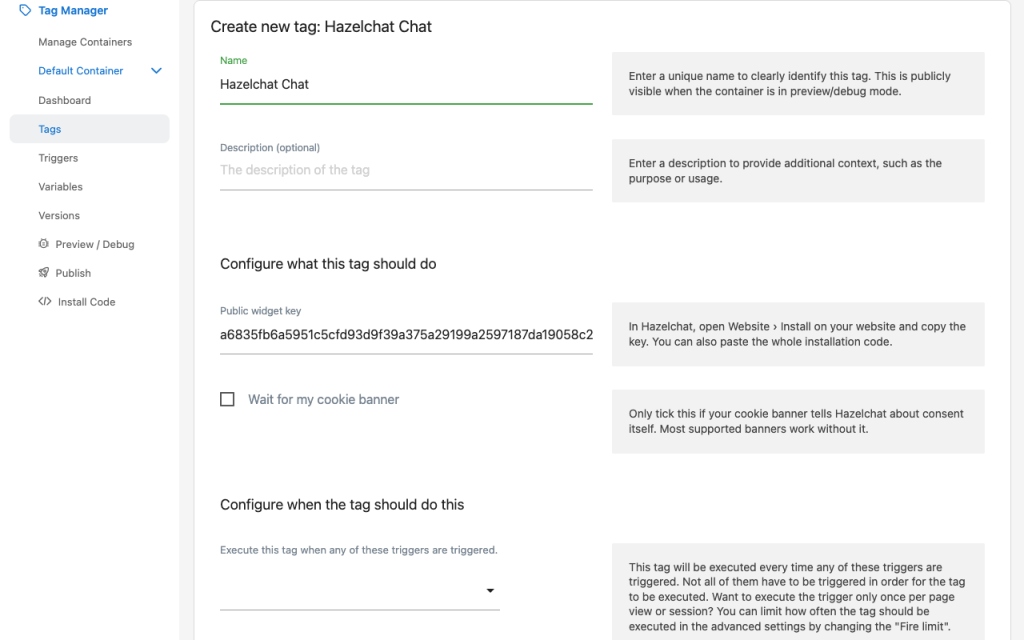
- A Tag Manager tag, "Hazelchat Chat". Paste your public widget key, choose the Pageview trigger and publish. No change to your website's code.
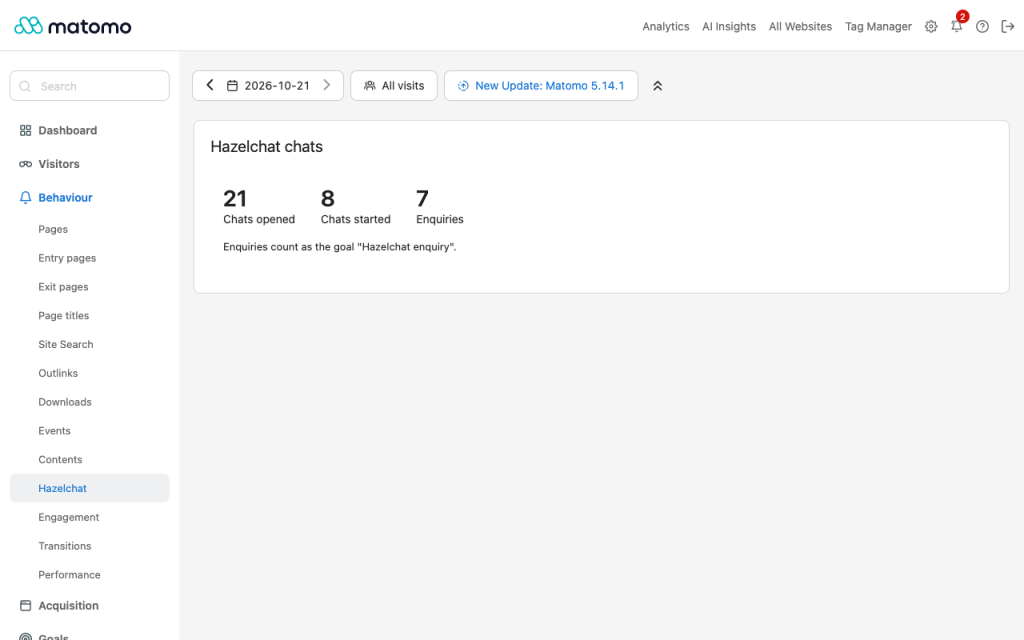
- A Hazelchat page under Behaviour. Chats opened, chats started and enquiries for the period and segment you pick. Also available as a dashboard widget.
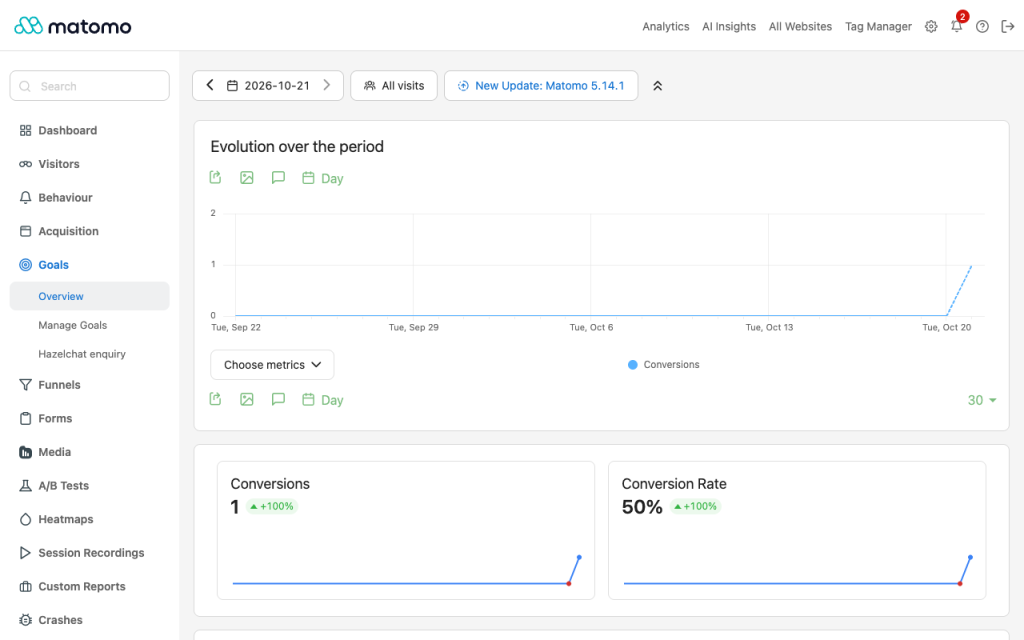
- Count enquiries as a goal. One button creates the goal "Hazelchat enquiry", so goal reports show which pages, channels and campaigns bring enquiries.
Where the numbers come from
When Matomo is on the page, the Hazelchat chat adds three events to the visit, in the category Hazelchat: Chat opened, Chat started and Chat enquiry. They go through your own Matomo tracker, so your Matomo consent settings apply. The events carry no chat text, no page details and no personal details, and nothing from Matomo is sent to Hazelchat. The events also work without this plugin (for example on Matomo Cloud), as ordinary events under Behaviour › Events.
What you need
- A Hazelchat account. The Free plan covers one website.
- Matomo 5 On-Premise (or Matomo for WordPress). The tag needs Matomo Tag Manager, which comes with Matomo.
How to use it
- In Hazelchat, open Website › Install on your website and copy your public widget key.
- In Matomo, open Tag Manager, choose your container, then Tags › Create new tag, and pick Hazelchat Chat.
- Paste the key, choose the Pageview trigger, save and Publish.
- In Hazelchat, add your website address and click I've added the code.
- In Matomo, open Behaviour › Hazelchat and click Count enquiries as a goal.
The chat appears once your agent is live for the website in Hazelchat. If you already added the chat another way, skip steps 2–4: the events and the Hazelchat page work however the chat was added.
Privacy
The tag loads https://app.hazelchat.co/widget.js with your public widget key; the key gives no access to your Hazelchat account. What the chat collects, and why, is in Hazelchat's privacy notice and data processing agreement. Mention Hazelchat in your own privacy notice, as you would for any chat on your site.
This plugin adds no tracker code and no database table, and makes no request of its own.
Support
-
Enquiries as a goal
-
Hazelchat page under Behaviour
-
Tag Manager tag Hazelchat Chat
- In Hazelchat, open Website › Install on your website and copy your public widget key (64 characters). You can also paste the whole installation code; the tag keeps only the key.
- In Matomo, open Tag Manager, choose your container, then Tags › Create new tag and pick Hazelchat Chat.
- Paste the key and choose the Pageview trigger. Save, then Publish the container.
- In Hazelchat, add your website address and click I've added the code.
The chat stays hidden until your agent is live for that website in Hazelchat. The tag loads the chat once per page, even if the container fires it again.
Wait for my cookie banner (off by default): the chat then waits until your website tells it that the visitor agreed. Most cookie banners that Hazelchat supports work without this box; see Hazelchat's cookie banner guide.
See chats in Matomo
Open Behaviour › Hazelchat. It shows, for the selected period and segment:
Number
Counted when
Chats opened
A visitor opens the chat.
Chats started
A visitor's first question in a new conversation is answered. A conversation continued on the next page is not counted again.
Enquiries
A visitor leaves an enquiry in the chat.
The numbers are the chat's events (category Hazelchat, actions Chat opened, Chat started, Chat enquiry). You find them under Behaviour › Events too, and can use them in segments, for example "Event category is Hazelchat".
Count enquiries as a goal
Click Count enquiries as a goal on the Hazelchat page. It creates the goal Hazelchat enquiry for this website: event action is exactly Chat enquiry, counted once per visit. You need write access to the website. You can rename the goal or give it a revenue value later under Goals › Manage goals.
Does Matomo send anything to Hazelchat?
No. The plugin makes no request of its own. The events go from the visitor's browser to your Matomo, through your own tracker.
What do the events contain?
Only the category Hazelchat and one of three actions: Chat opened, Chat started, Chat enquiry. No chat text, no name, no email address and no page details. Matomo records them with the visit, as it does any event.
Do the events follow my consent settings?
Yes. They use the Matomo tracker on your page. If you set Matomo to require consent, no event is sent before the visitor agrees.
I use Matomo Cloud. Can I use this?
The events work on Matomo Cloud without the plugin: you find them under Behaviour › Events. The tag and the Hazelchat page need the plugin, which Matomo Cloud does not let you install yourself.
I added the chat without Tag Manager. Do I need the tag?
No. The events and the Hazelchat page work however the chat was added.
Can I turn the events off?
Yes. Add data-matomo="off" to the Hazelchat installation code on your website.
Why does my number differ from Hazelchat's own analytics?
Matomo counts only visits it tracks: visitors who declined tracking, or who block Matomo, are not in Matomo but can still use the chat.