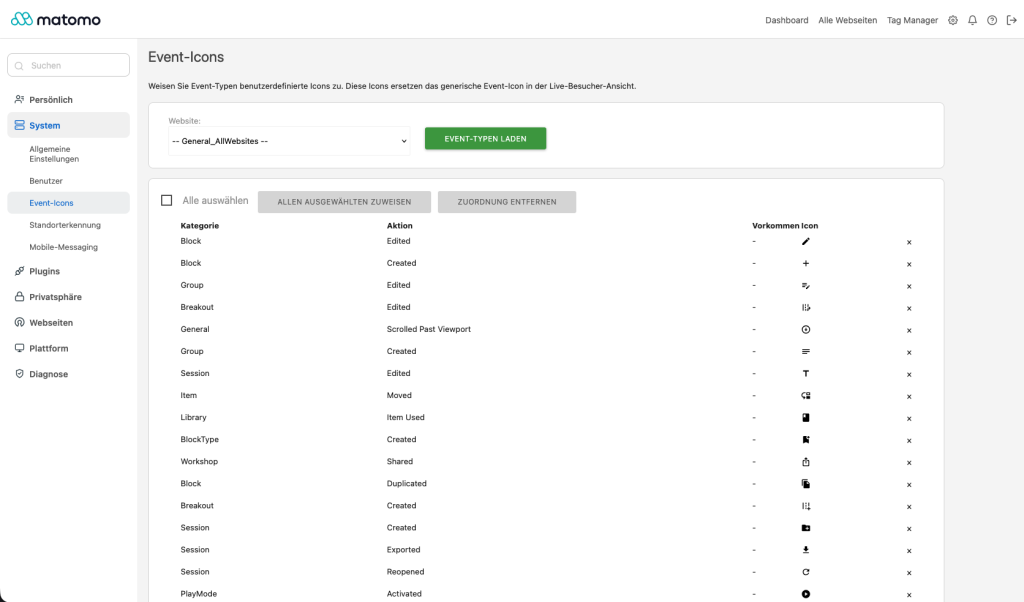
Replace the generic grey event icons in Matomo's Visitor Log and Live (Real-time) widget with meaningful Material Design icons. Each event category/action pair can be assigned its own icon – from over 2,100 included icons – so you can instantly recognise event types at a glance. Hold Cmd (macOS) or Alt while clicking an event icon to copy its tooltip text instead of opening the linked page.
How it works
- Go to System → Event Icons and select a website.
- Click Load event types to detect recent events from the last 90 days.
- Assign an icon to each category/action pair using the built-in icon picker.
- Save – the icons update immediately in the visitor log and live widget.
The plugin bundles all Material Design icons as compact JSON path data (~570 KB). Icons are served as static SVG files directly by the web server – no PHP request per icon, no external API calls or dependencies.
Features
- Individual Material Design icons per event category/action
- Works in Visitor Log and Live (Real-time) widget
- Auto-detects existing event types from recent tracking data
- 2,100+ icons included – searchable picker
- Immediate update – no page reload needed
- Cmd-/Alt-click an event icon to copy its tooltip text
- Lightweight – no external dependencies
-
EventIcons Plugin Realtime View
-
EventIcons Plugin Settings Page
Overview
Event Icons lets you replace the generic event icons in Matomo's Visitor Log and Live (Real-time) widget with specific icons per event category and action.
How icon replacement works
The plugin hooks into Matomo's JavaScript and CSS pipeline:
- A MutationObserver watches the DOM for new visitor log and live widget entries.
- When entries are detected, the plugin reads the event category/action from the element's title attribute (live widget) or text content (visitor log).
- The category/action pair is looked up in the user-defined mapping, and the matching icon's
<img> src is replaced.
- An AJAX call fetches action timestamps (
server_time, time_spent_ref_action) from the database and appends them to the tooltip.
Settings page
The settings page at System → Event Icons provides:
- Website selector – choose which site's events to inspect.
- Load event types – scans the last 90 days of tracking data for existing category/action pairs.
- Icon picker – search through 2,100+ Material Design icons by name.
- Bulk assign – set the same icon for multiple rows at once.
- Save selected – persists the mapping immediately.
Icons
Icons are stored in icons/material-paths.json as a JSON object mapping icon names to SVG path data. Static SVG files for all icons live in icons/material/ and are generated with php scripts/generate-icons.php; the web server serves them directly, so each icon is a single browser-cached static file request instead of a full PHP request.
To add custom icons, see README.md → Adding custom icons.
Database queries
The plugin performs two database queries:
- Event detection (settings page):
SELECT cat.name, act.name, COUNT(*) FROM log_link_visit_action JOIN log_action ON ... GROUP BY cat.name, act.name – scoped to last 90 days and a specific site.
- Action times (tooltip enhancement):
SELECT server_time, time_spent_ref_action FROM log_link_visit_action WHERE idvisit = ? ORDER BY server_time ASC.
Limitations
- The first action of each visit always shows no time-on-page (landing page has no predecessor).
- The mapping is global – all sites share the same icon configuration.
I assigned icons but they don't appear. What's wrong?
Clear the Matomo cache: System → General Settings → Clear cache. If you're still seeing the old icons, make sure the browser cache is also cleared (hard refresh: Ctrl+F5 or Cmd+Shift+R).
Can I use custom icons not included in Material Design?
Yes. See the README.md → Adding custom icons section for instructions. Any SVG can be added as long as it is placed in the icons/material/ directory, the JSON index is rebuilt, and the static files are synced (php scripts/generate-icons.php).
Does this plugin work with Matomo 4?
No. The plugin targets Matomo 5.x (>=5.0.0-b1, <6.0.0-b1).
Does the plugin send data to external servers?
No. All icons are bundled locally. No external API calls, no tracking, no phoning home.
I see "Time on page: 0s" or no time at all.
The first action of each visit is the landing page – it has no time-on-page because there is no previous page. Subsequent actions show the time spent on the previous page. If all actions show no time, your tracking data may not include time_spent_ref_action (check if your tracker sends ping requests or if the page tracking is properly configured).
How do I uninstall the plugin?
Deactivate it in System → Plugins, then delete the plugins/EventIcons directory. The database contains no custom tables – uninstalling leaves no traces.